


To change the CR department's settings and send updated data to POS:
- From the PIM main page, go to Taxonomy > CR Departments.
- In the CR Departments list, select the department you need to update and click the Edit button.
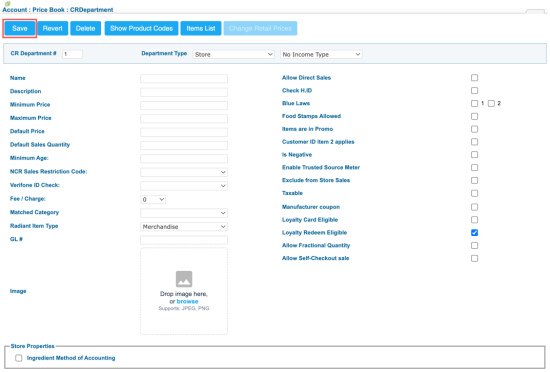
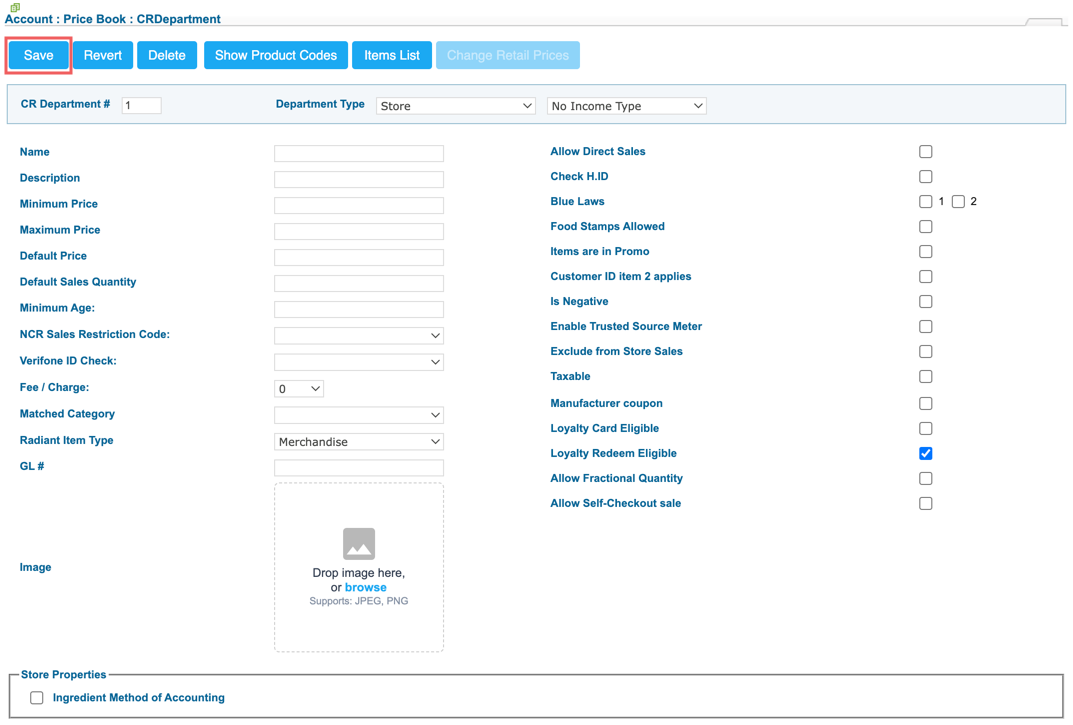
Result: The CR Department form opens. - In the CR Department form:
- Change the attribute you need.
- At the top left of the form, click Save.
- To trigger the updates sending process, go to the Cash Register form.
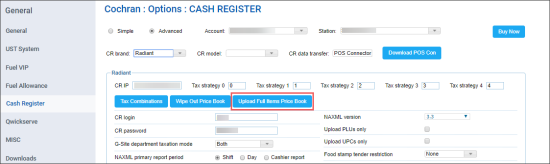
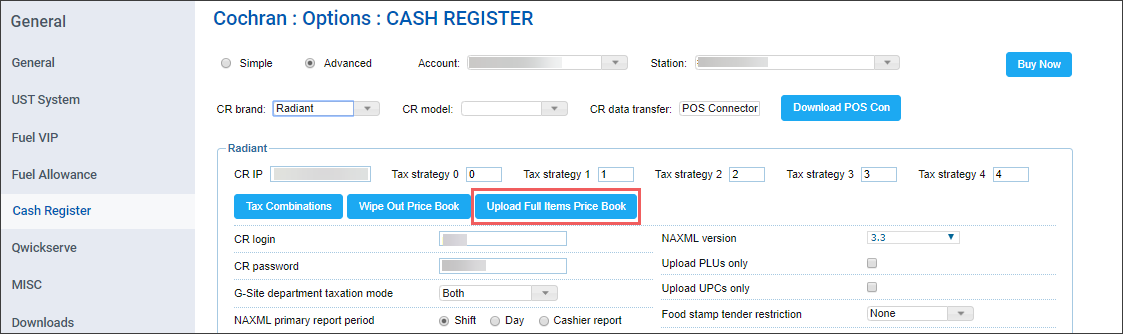
- In the Cash Register form:
- Click Advanced.
- Click the Upload Full Items Price Book button.
- To accept changes sent to POS, go to the Cash Register Updates Manager form.
- In the Cash Register Updates Manager form, click the Accept Changes button.

For more information on how to open the Cash Register form, see Setting Up Locations and Station Options: Cash Register.
For details, see Cash Register Settings.

For more information on how to review and accept changes in the Cash Register Updates Manager form, see Reviewing and Accepting Changes.
Age restrictions
The minimum age for age-restricted departments is configured in the Minimum Age CR Department field. This configuration can be overridden for specific locations to comply with local regulations:

- Scroll down department settings to the Age Restriction Settings section.
- Clear the Default from department option next to the location name.
- Specify the age restriction in the Minimum Age field next to the location name.
To use the default minimum age from department settings, select the Default from department option next to the location name.


