


CStoreOffice® can automatically retrieve and apply discounts and promotions on R.J. Reynolds Tobacco Company products via integration with the RJR Discount API. This integration ensures that discounts are applied in a timely manner, eliminates manual entry, and improves overall data accuracy.
To start working with RJR Discount API, follow the steps below.
- Check the RJR API prerequsites.
- Enroll for RJR Discount API.
- Pilot integration.
- Integrate RJR Discount API with CStoreOffice®
Important considerations
- Promotions and discounts are pulled from the RJR Discount API once a day.
- The RJR Discount API provides information on the following types of promotions:
- Manufacturer buy-downs
- Mix and match
Check the RJR API prerequisites
To integrate your locations (stations) with RJR Discount API, check that the following requirements are met:
- The RJR Discount API is available for integration.
- Scan Data subscription is purchased and activated for all locations that will automatically receive promotional data via the API.
Enroll for RJR Discount API
To enroll for the RJR Discount API service:
- Register on the RJR Engage API Portal if you have not done so already.
- Sign in to the Engage API Portal with the credentials created on Step 1.
- On the main page of the Engage API Portal, subscribe to Discount API.
- Set Petrosoft as the third-party provider to allow it to access the API on your behalf.
Purchase Scan Data subscription
RJR discounts / promotions integration requires an active Scan Data subscription for every location that will automatically receive promotional data via the API. This subscription can be purchased through the Petrosoft Marketplace or by contacting a Petrosoft sales representative.
If you are successfully using Tobacco Scan Data Supporting RJR report for the location, you already have an active Scan Data subscription for it. In this case, you can skip the following steps.
- Open the Scan Data Subscription page at Petrosoft Marketplace.
- Sign in to your account.
- Select the duration for which the subscription will be active (1 month or 1 year).
- Purchase the subscription by following the on-screen instructions. The purchased Scan Data Subscription will appear in your subscriptions list.
- By default, the purchased subscription is not automatically assigned to your business unit. Open the subscription and click the Assign License button.
- Select the location to which the Scan Data API subscription will be assigned to and click the Done button.
Pilot integration
After enrolling in the RJR Discount API and purchasing a Scan Data subscription, you are ready to try out the integration at a pilot location.
At the moment, self-service integration with the RJR Discount API is not supported in CStoreOffice®. Please contact Petrosoft Support for assistance with setup and configuration changes.
Provide information to Petrosoft
Depending on your store type, send the following details to Petrosoft Support.
Single-store
You must explicitly enroll as a single store in the RJR Discount API to use this option.
- Outlet ID from the RJR Engage API Portal
- Outlet Name from the RJR Engage API Portal
- The email you have used to sign up for RJR API.
Multi-store (chain)
- Get the RJR Discount API access credentials from the RJR Engage API Portal:
- Retailer account number;
- Client ID;
- Secret.
- Pick a CStoreOffice® location to pilot the RJR Discount API integration.
- Sent the request to Petrosoft Support with the following information:
- Pilot location name;
- Pilot location address;
- RJR account number (see Step 1);
- RJR API Client ID (see Step 1);
- RJR API Secret (see Step 1);
The pilot location must have an active Scan Data subscription!
Test the integration
- Petrosoft will configure the integration using the provided parameters and notify you once it is ready.
- Petrosoft Cloud retrieves promotions from the RJR Discount API for the pilot location. The data is refreshed once a day.
- Review and confirm the promotions from RJR appeared in CStoreOffice®:
- From the CStoreOffice® home page:
- Go to Items Updates.
- Click the name of the pilot location.
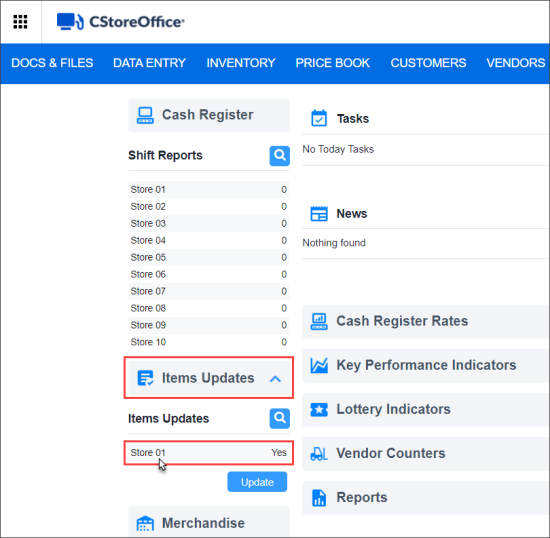
- In the Cash Register Updates Manager form:
- Go to Changes > Updates.
- In the Updates section, click Promotions.
- Review promotions data and click Accept Changes to push updates to the location's cash register.
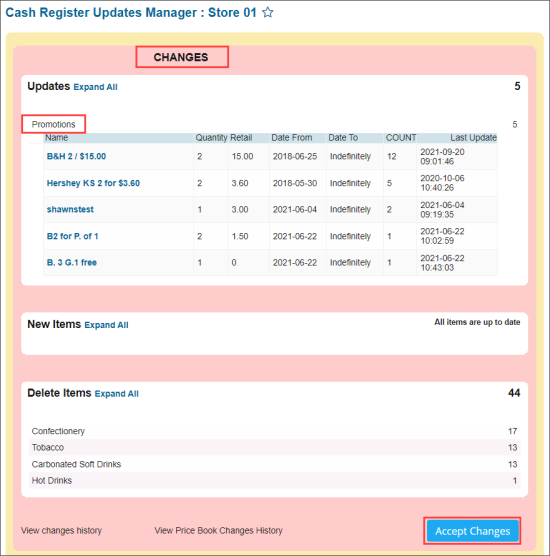
For more information about accepting changes, see Reviewing and Accepting Changes.
Integrate RJR Discount API with CStoreOffice®
When promotions are reviewed and confirmed at the pilot location, inform Petrosoft Support that you are ready to roll out the integration for the remaining locations.


