


With this report, you can set up the transaction-level scan data export to the Philip Morris International (PMI) on the weekly basis through the Circana platform. This information is used to validate the PMI promotion participation.
This report is only available for the cash registers with the PJR files enabled. For more information, see Enabling PJR Files
Before You Begin
Before you start configuring the Scan Data reports for your locations:
- Make sure you have an active Scan Data subscription. If a location does not have an active Scan Data subscription, such location is disabled in the report and cannot be configured. If the location's Scan Data subscription has been expired, the report's data is not sent for this location.
- Enroll for Circana Retail
Scan Data Program. Circana will provide you credentials to log into the FTP environment where weekly reports should be exported for processing by Circana.
Along with credentials, you will receive the welcome information with program details and required steps regarding submitting files to Circana. You can continue submitting data to both providers throughout the entire onboarding process.
Opening the Report
You can find the report at Reports > Accounting > Export Data > PMI U.S. SFPP Scan Data Program. For more information, see Viewing Reports.
Setting Up Data Export
Adding a Chain
In Circana ecosystem, chain (also known as the Submitter ID or Parent Account ID) represents the top-level parent entity for retail accounts. It is used to aggregate multi-store retail sales to ensure accurate manufacturer buydown reconciliations.
You cannot generate your own Chain ID. It is officially provisioned by Circana during the manufacturer enrollment and onboarding process.
To add a chain, click Add new chain on top of the report and then follow the steps in the setup form.

- Provide the chain identifier from the Circana Welcome email received after enrollment the Submitter ID field.
- To submit report data to the Circana automatically, select Enable automatic Scan Data submission and configure the scope and the schedule:
- Select CR Departments and Categories for the items to be included into the report. Mind the following conditions to be met:
- You can set up both or only one of the above parameters, CR Department or Category.
- When both CR Departments and Categories, are set up, only the items matching both fields will be included in the report. See details in the example below.
- CR Department: 03|Drinks
- Category: 06|Juices
- Specify the username and password provided by PMI representative. Leave the SFTP Host parameter unchanged (rsdp.circana.com) for correct data flow.
- Select the path on the Circana FTP where report files are exported depends on the current phase of the Circana onboarding process:
- Click Show advanced settings to configure a submission schedule. The report is sent once a week.
- Specify the day of week and time when the report is sent.
- The Number of resubmission retries specifies the number of attempts that CStoreOffice® must make to send the report to the destination. After the last failed attempt, CStoreOffice® sends an email notification with the error description to the system administrator.
- The Waiting in minutes for repeat field specifies the time interval between attempts to send the report to the destination. If CStoreOffice® fails to send the report for some reason, it waits for the specified period of time and then makes a new attempt.
- In the Report period>From and To fields, specify the time period of the exported data. We highly recommend to leave the default value (entire week).
- Specify email addresses that will receive notifications on automated export errors. Click Add to configure multiple recipients.
- In the Set up locations section, enter the PMI Outlet Number (the unique identifier assigned to a physical retail store location by Philip Morris) for each location. Selected locations stay in this chain. Unselected locations are saved as independent locations.
- Click the Save button to remember chain export settings.
 Example
For example, the following parameters configured in the report:
The following logic will be applied to the items in this case:
| Item Parameters | Is included in the report? Y/N | ||
| Name | CR Department | Category | |
| Hot Water | 03|Drinks | 07|Drinks | N |
| Apple Juice with Ice | 02|Cold Drinks | 06|Juices | N |
| Orange Juice | 03|Drinks | 06|Juices | Y |
Based on the example above, only Orange Juice will be included into the report data, because it is the only item that matches both report parameters, CR Department and Category.
To remove a department or category, expand the list and clear the checkbox to the left of the name. To clear the filter completely, click the cross icon in grey badge showing the number of selected items in the dropdown.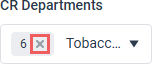
Before the chain export is configured and scheduled, it may be wise to check the correctness of connection settings. This will help you proactively troubleshoot the most common export problems that may be related to invalid credentials, insufficient permissions or typo in the domain or path where the report will be exported.
Click Test FTP connection. CStoreOffice® will try to establish the connection to the host using the provided credentials.

If successful, "Connected" message is displayed. Otherwise, you will get one of the following errors:
| Message | Reason | Troubleshooting |
|---|---|---|
|
Unable to establish the connection. The server is unreachable. |
The host is down. |
Contact the Circana help desk. |
|
Access denied because username and/or password is invalid. |
Invalid login, bad password or unsupported user. |
Verify the values in Username and Password fields. Click the eye icon next to the Password field to show the password. |
|
The requested path was rejected by the server. |
Invalid or missing path. |
Verify the value in the Path field. If it is valid, contact the Circana help desk. |
|
Destination folder access denied. |
You are not allowed to access the provided path on the host. |
Contact the Circana help desk. |
The connectivity check may take a while. However, you can click the Check connection button and continue configuring the export.
| Phase | Path | Description |
|---|---|---|
| Testing | /Onboarding_Validation/ | During this stage, Circana will validate that your files are submitted in the correct format and notify you of any formatting issues. |
| Certification | /Onboarding_Validation/ |
After successful completion of the testing phase, Circana will perform a detailed review of each week’s data and will communicate you if resubmissions are required due to inaccurate data. Circana will need at least two weeks of consecutive data for review. |
| Production | /Production/ |
After providing two weeks of consistent and accurate data submissions to Circana, you will be notified by Circana that you have successfully completed onboarding. The entire process from testing to production will take a minimum of 4 weeks. |
Editing a Chain
- To change the chain export settings, click Settings next to the chain name, and configure the export in the right pane. Refer to Adding a Chain section for details on configuration settings.
- To change the location's PMI Outlet Number (the unique identifier assigned to a physical retail store location by Philip Morris), enter the new identifier in the PMI Outlet Number column.
- To override automatic submission for individual locations in a chain, toggle the Auto-submit switch in the corresponding row. To toggle automatic submission for the entire chain, turn the Auto-submit switch on or off in the table header.
- To remove the location from the chain, expand the location and click the Detach from chain button.


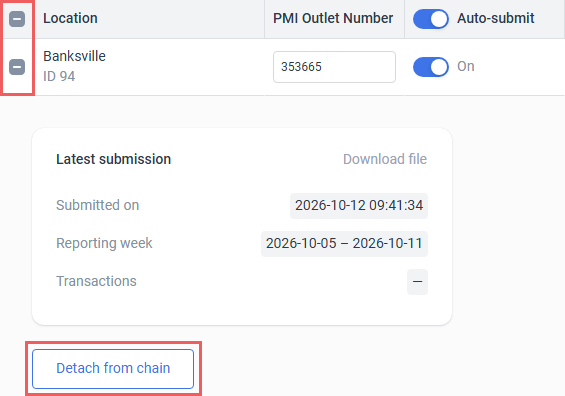
To save updated chain settings, click the Save button on top of the report.

When all locations are deleted from the chain, you can delete it.
Configuring Independent locations
Locations that are not included in chains appear in the Independent locations section of the report.

To change the location's PMI Outlet Number (the unique identifier assigned to a physical retail store location by Philip Morris), enter the new identifier in the PMI Outlet Number column.
To automatically submit locations data to Circana, toggle the Auto-submit switch in the corresponding row. To toggle automatic submission for all independent locations, turn the Auto-submit switch on or off in the table header.
To configure location export properties, expand it and fill in the following fields:
- Specify the username and password provided by PMI representative. Leave the SFTP Host parameter unchanged (rsdp.circana.com) for correct data flow.
- Select the path on the Circana FTP where report files are exported depends on the current phase of the Circana onboarding process:
- Click Show advanced settings to configure a submission schedule. The report is sent once a week.
- Specify the day of week and time when the report is sent.
- The Number of resubmission retries specifies the number of attempts that CStoreOffice® must make to send the report to the destination. After the last failed attempt, CStoreOffice® sends an email notification with the error description to the system administrator.
- The Waiting in minutes for repeat field specifies the time interval between attempts to send the report to the destination. If CStoreOffice® fails to send the report for some reason, it waits for the specified period of time and then makes a new attempt.
- In the Report period>From and To fields, specify the time period of the exported data. We highly recommend to leave the default value (entire week).
- Specify email addresses that will receive notifications on automated export errors. Click Add to configure multiple recipients.
Before the location export is configured and scheduled, it may be wise to check the correctness of connection settings. This will help you proactively troubleshoot the most common export problems that may be related to invalid credentials, insufficient permissions or typo in the domain or path where the report will be exported.
Click Test FTP connection. CStoreOffice® will try to establish the connection to the host using the provided credentials.
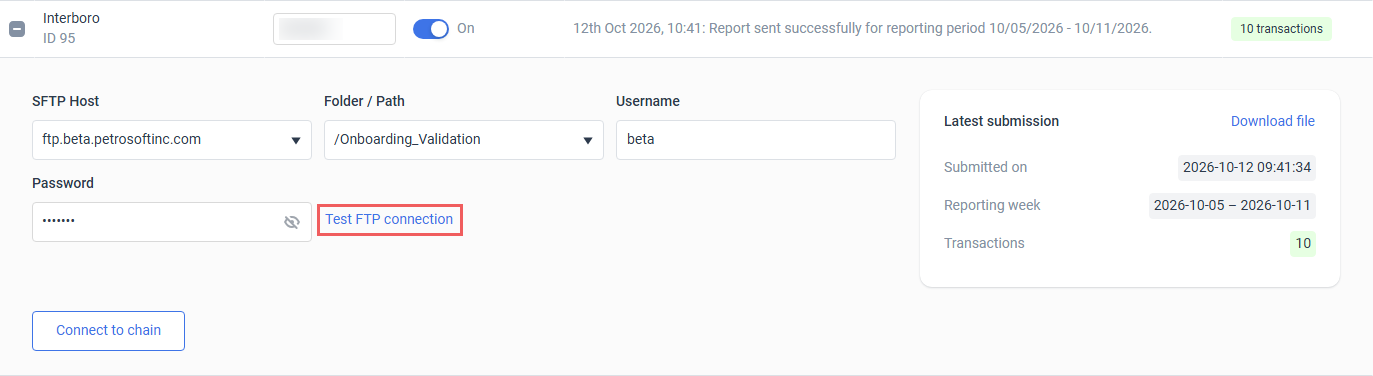
If successful, "Connected" message is displayed. Otherwise, you will get one of the following errors:
| Message | Reason | Troubleshooting |
|---|---|---|
|
Unable to establish the connection. The server is unreachable. |
The host is down. |
Contact the Circana help desk. |
|
Access denied because username and/or password is invalid. |
Invalid login, bad password or unsupported user. |
Verify the values in Username and Password fields. Click the eye icon next to the Password field to show the password. |
|
The requested path was rejected by the server. |
Invalid or missing path. |
Verify the value in the Path field. If it is valid, contact the Circana help desk. |
|
Destination folder access denied. |
You are not allowed to access the provided path on the host. |
Contact the Circana help desk. |
The connectivity check may take a while. However, you can click the Check connection button and continue configuring the export.
| Phase | Path | Description |
|---|---|---|
| Testing | /Onboarding_Validation/ | During this stage, Circana will validate that your files are submitted in the correct format and notify you of any formatting issues. |
| Certification | /Onboarding_Validation/ |
After successful completion of the testing phase, Circana will perform a detailed review of each week’s data and will communicate you if resubmissions are required due to inaccurate data. Circana will need at least two weeks of consecutive data for review. |
| Production | /Production/ |
After providing two weeks of consistent and accurate data submissions to Circana, you will be notified by Circana that you have successfully completed onboarding. The entire process from testing to production will take a minimum of 4 weeks. |
Click the Save button to remember location export settings.
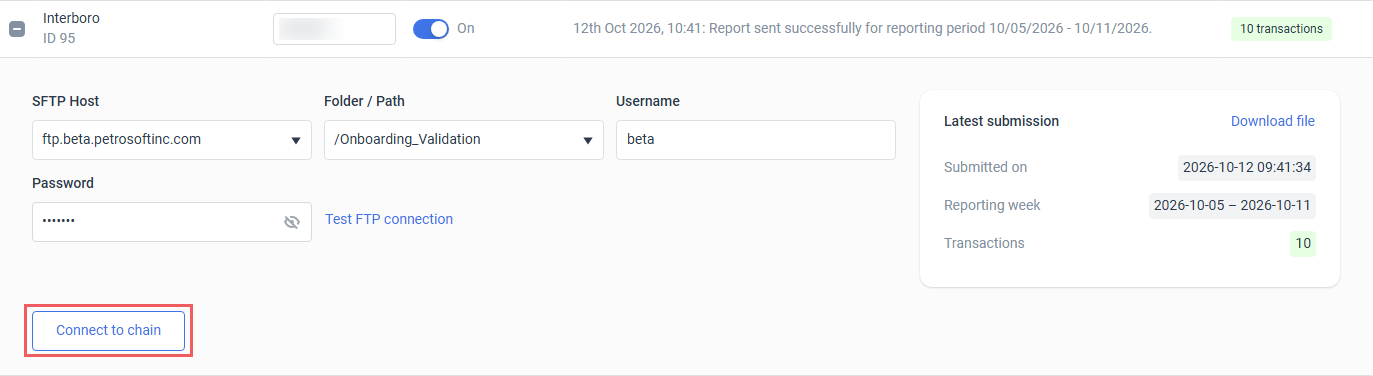
To join a location to the chain, click the Connect to chain button in the expanded location block.
Understanding the Report
The Tobacco Scan Data report exports the following data:
- Outlet Name: PMI outlet name provided in the report.
- Outlet Number: Location ID specified in CStoreOffice®.
- Address, City, State, ZIP: Location address details specified in CStoreOffice®.
- Transaction Date/Time: Date/time for a transaction start point at the cash register.
- Market Basket Transaction ID: Unique identifier of the transaction ID, formed as location ID + transaction ID.
- Scan Transaction ID: Unique identifier of each product scanned in the transaction.
- Register ID: ID of the cash register used for the transaction.
- Quantity: Number of units for the sold product.
- Price: Final price at the cash register per one sold unit.
- UPC Code: Scanned UPC code on the sold product.
- UPC description: Product description.
- Unit of Measure: Description of the product type sold - each, pack, roll, carton and so on.
- Promotion Flag: May have the following values:
- Y: If there is a discount amount for the product.
- N: If the is no discount amount for the product.
- Outlet Multi-pack Flag: May have the following values:
- Y: Product has been sold with a discount as part of a sponsored multi-pack promotion.
- N: No sponsored multi-pack promotion is associated with the product.
- Outlet Multi-pack Quantity: Number of units to be purchased for the promotion to trigger.
- Outlet Multi-pack Discount Amount: Unit discount provided for the product sold.
- Account Promotion Name: Promotion name for the promotion of the Account Promotion type in the report.
- Account Discount Amount: Discount amount value for one item for the promotion of the Account Promotion type in the report.
- Manufacturer Discount Amount: Discount amount per product from the manufacturer.
- Manufacturer Promotion Description: Name of the multi-pack program funded by the manufacturer.
- Manufacturer Multi-pack Flag: May have the following values:
- Y: The product is included in the manufacturer sponsored promotion (reimbursement).
- N: The product is not included in the manufacturer sponsored promotion.
- Manufacturer Multi-pack Quantity: Number of units to be purchased for the manufacturer sponsored promotion to trigger
- Manufacturer Multi-pack Discount Amount: Total discount per one sold unit; in case several discounts are applied (for example, a promotion), the discount amounts are summed up.
- Manufacturer Multi-pack Description: Description of the manufacturer multi-pack promotion created in CStoreOffice®; in case several discounts are applied, the field contains several program names
- Manufacturer Buy-down Description: promotion name (for promotions with reimbursement)
- Manufacturer Buy-down Amount: dollar amount of the buydown discount applied to the transaction
- Account Loyalty ID Number: unique account loyalty or reward card number associated with each consumer
- Coupon Description: name of the coupon description offer, is intended for retailer-offered loyalty coupons
Location Events
Messages about relevant events in the location appear in the Location events column.

The messages about these events may appear in this column:
- Successful report submission: shows submission date and time and which week the report was submitted for.
- Failed report submission: shows date and time when the issue occurred and which week the report was not submitted for. The following issues may occur:
- Connection issue: the system stopped report submissions because of connection issues.
- No data: appears in case if the data is absent for the station.
- User-initiated credential update: appears when the user updated the credentials for the location.
- Report delivery subscription expiration: a notification when the report delivery subscription expired.
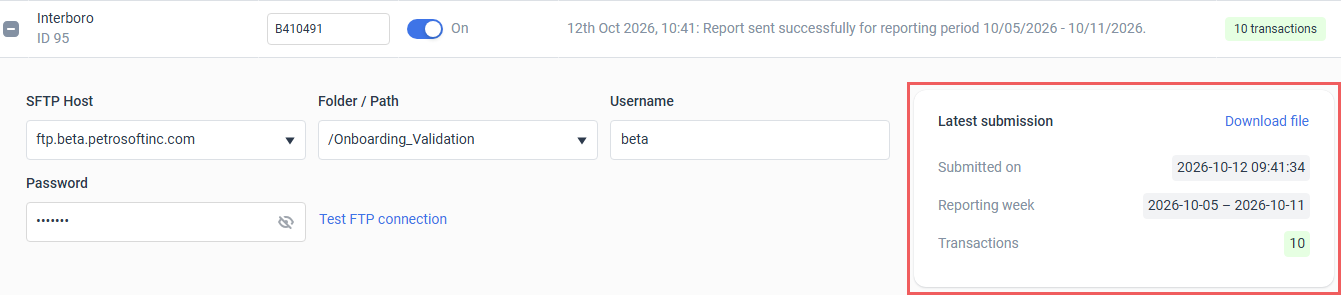
To view details on the latest submission and download the file submitted to Circana, expand the location and check the Latest submission section.
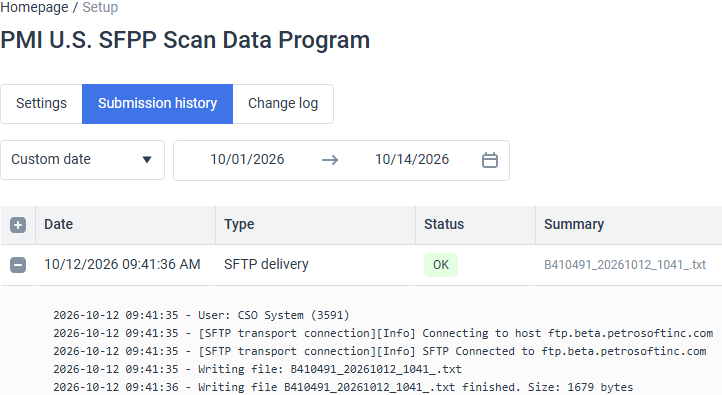
To view the complete history of submission events for the selected date range, switch to the Submission history tab. Expand the event to see the full submission log.
Change Log
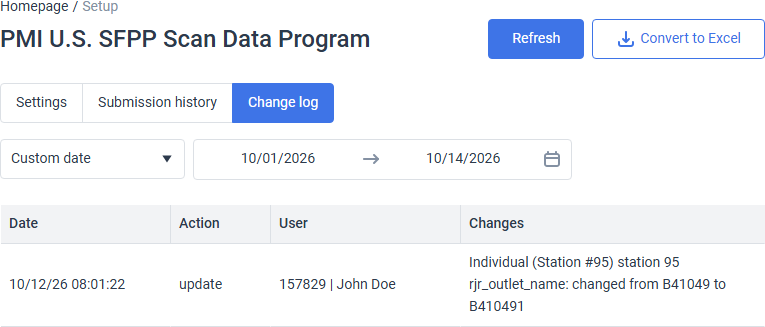
To view thew complete history of export configuration changes for the selected date range, switch to the Change log tab.
Technical Export Parameters
The reports are sent to Circana FTP server configured in SFTP settings as uncompressed plain text files with .txt extension. The values are pipe-delimited (|).
The following Circana FTP connection settings are used by default:
- Host name: rsdp.circana.com
- Port: 22
Names of report files adhere to Circana's Scan Data File Naming Requirements: <Submitter ID>_<Date>_<Time>.txt
- Submitter ID: Chain ID or PMI Outlet Number, depending on data source.
- Date in
<4-digit year><2-digit month><2-digit date>format, for example, "20241120". - Time in
<2-digit hour in 24-hour format><2-digit minute>format, for example, "1837".
Data Export Control
To download report data for manual submission or analysis or re-send failed reports to Circana, click the Resubmit or download data button on to of the report.

Re-Submit Reports
To re-send the reports to Circana, switch to the Resubmit data tab in the right pane, specify locations and a date range, and click the Resubmit data button:
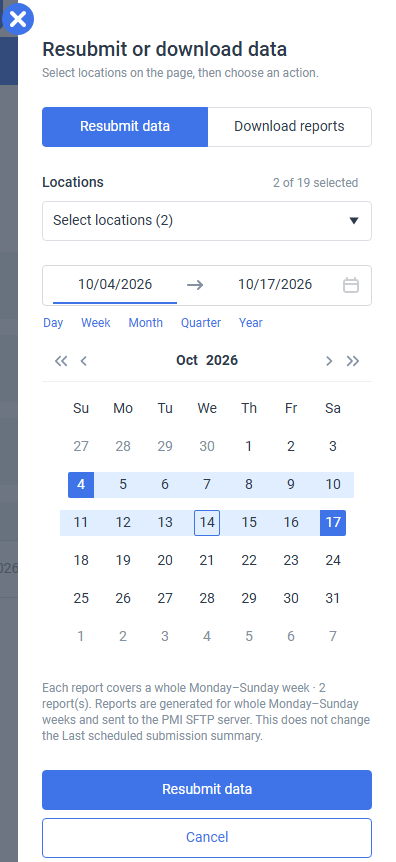
Weekly reports that match the specified date range are re-generated and uploaded to Circana using the configured data export settings.
The reports will always be generated for full weeks (Monday to Sunday), even if the range does not cover the entire week.
Report generation may take a while. You can close the page and check submission history later.
Download reports
To download reports, switch to the Download reports tab in the right pane, specify locations and a date range, and click the Download reports button:
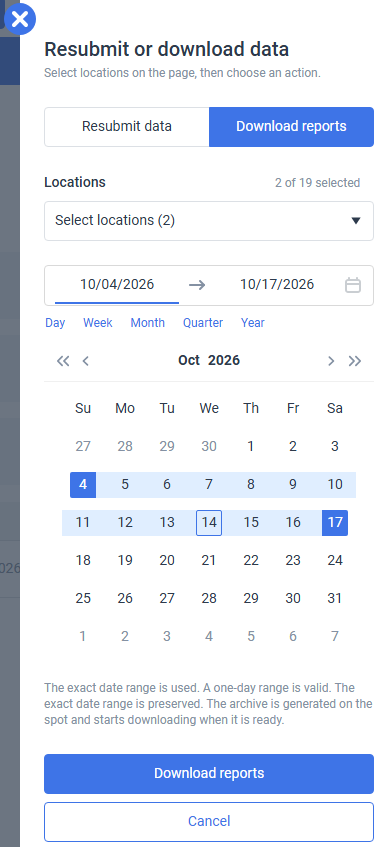
Weekly reports that match the specified date range are re-generated, packed into a ZIP archive, and downloaded to your local machine.
The reports will be generated for the exact date range specified in the parameters, even if the range does not cover the entire week.
For more information on additional report features, see Reports.


