


The Review Management section in Loss Prevention Analytics serves as the central workspace for monitoring and processing high-risk POS events.
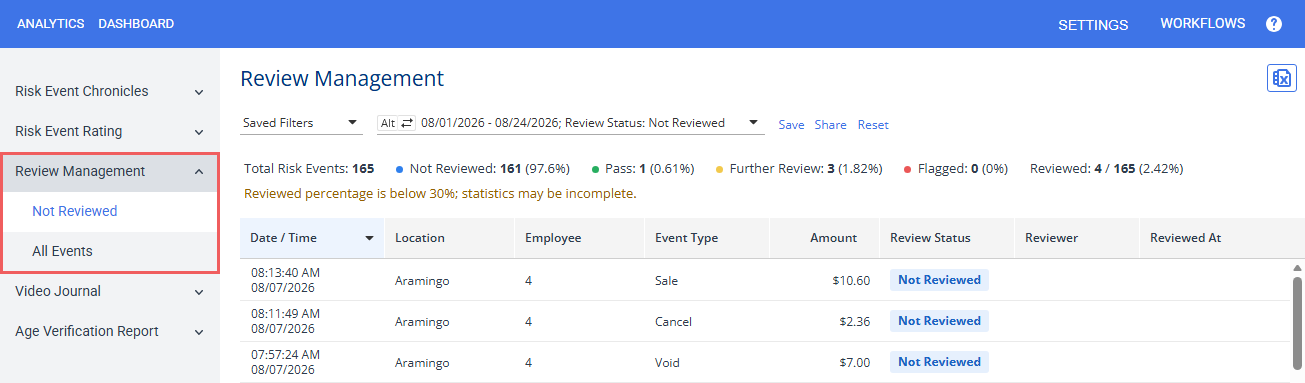
Not Reviewed
This view shows transactions with Not Reviewed status. The list is sorted by event date and time, displaying the newest records first. When a reviewer updates a transaction's status from to Pass, Further Review, or Flagged, the transaction automatically disappears from the list so that reviewers focus solely on unprocessed events.
This view presents critical details for each transaction to help prioritize reviews:
- Event date and time
- The location where the event happened
- Employee name
- Event type
- Transaction amount
- Current review status (Not Reviewed)
Click the transaction in the list to open its card in the Video Journal interface, change the transaction status, view the status update history, or investigate suspicious patterns.
All Events
This view shows all transactions for the specific period, regardless of their status. The list is sorted by event date and time, displaying the newest records first.
This view presents critical details for each transaction to help prioritize reviews:
- Event date and time
- The location where the event happened
- Employee name
- Event type
- Transaction amount
- Current review status
- Last reviewer (if any)
- Date and time of the latest review status change (if any)
Click the transaction in the list to open its card in the Video Journal interface, change the transaction status, view the status update history, or investigate suspicious patterns.
Summary metrics bar
The Review Management section is preceded by a summary bar which displays real-time performance indicators for the selected timeframe:

- Total Risk Events: Total number of risk transactions within a selected timeframe.
- Reviewed / Reviewed %: Sum and percentage of processed transactions (the total number of transactions with Pass, Further Review and Flagged statuses).
- Status Breakdown: Individual count and percentages of risk transactions for each review status.
- Warning banner: If the number of reviewed events falls below 30% of total for the specified period, the system displays a warning banner indicating that statistics may be incomplete.
Sorting and filtering
To narrow down the list to a certain criteria, click the filter area and specify the criteria:

- Period: Select a reporting period.
- Locations: Select one or more stores (locations).
- Employees
- Sale: Specify the sale amount range.
- Transaction type
- Review status. The defaut value of this filter depends on the Review Management area:
- Not Reviewed: "Not Reviewed" events only
- All Events: "Not Reviewed", "Pass", "Further Review", and "Flagged" events.
- Reviewer name
- Review period
Click the Apply button to filter the report by selected criteria.
Saved filters
To quickly switch between preferred filter sets (for example, show flagged events from all stores):
- Specify the filter criteria.
- Click the Save link and specify the preset name.
- Select the saved filter preset from the dropdown or press Alt + Left/Right Arrow keys to switch between saved filters one by one.


To reset the report to the default date range and review status, click the Reset link.
Export to CSV
The transactions matching current filters can be exported to a comma-separated values (.CSV) file for integration with third-party systems and automation. Click the Excel icon on top of the Review Management list.



