


The Mas 90 / Sage Intacct Export report allows you to extract daily store operations from CStoreOffice® and package them into structured accounting files ready for general ledger posting and vendor payable processing.
Depending on your accounting software, the report can produce files formatted for legacy Sage 100 (MAS 90) via Visual Integrator, or for Sage Intacct native CSV import.
Data Extracted
When Sage (MAS 90) is selected, the report reads its configuration exclusively from MAS 90 Export Settings and produces two CSV files formatted for Sage 100 Visual Integrator jobs:
- Sales and General Ledger export:
- Extracted data: Daily department sales, fuel grade sales, lottery/custom income, sales taxes, tender collections (Cash, Credit Cards), cash over/short, expenses, and paid-outs.
- Account formatting: Accounts are produced as concatenated strings combining the account, store code, and department suffix (for example,
{MAS GL#101}-{MAS GL#201}{MAS GL#102}like40005-30, and{MAS GL#301}-{MAS GL#202}like11010-300). - Output layout: Generates a 4-column CSV (GL Account Number, Date, Debit, Credit).
- Purchases and AP Bills export:
- Extracted data: Merchandise delivery invoices and fuel invoices entered in CStoreOffice®.
- Account formatting: Maps vendor codes from MAS GL#401 and inventory/cost accounts from MAS GL#103 concatenated with store codes.
- Output layout: Generates an 8-column CSV (Vendor GL #, Invoice #, GL Account #, Invoice Total Cost, Date, Line Cost, Station Name, MOP).
When Sage Intacct is selected, the report reads its configuration exclusively from Sage Intacct Export Settings and produces two native CSV templates along with automated diagnostic logs:
- GL Entries file (
*.sales.*.csv): - Extracted data: Daily sales, tenders, taxes, and store paid-outs.
- Account formatting: Outputs clean, single-segment account numbers (
ACCT_NO) and places store and department identifiers into independent dimension columns (LOCATION_IDandDEPT_ID). - Output layout: Generates a 12-column CSV structured with header records on Line 1, deterministic reference keys (
CSO-S-{station}-{YYYYMMDD}), and strictly balanced debits and credits. - AP Bills file (
*.purchases.*.csv): - Extracted data: Itemized merchandise delivery invoices and fuel bills.
- Account formatting: Maps vendor master IDs (
VENDOR_ID), assigns calculated due dates based on vendor payment terms, and automatically attaches fuel department tags to fuel purchase lines. - Output layout: Generates a 13-column CSV with bill headers repeated across every invoice item line.
- Companion error log (
err_*.csv): - Generated automatically if any data row fails validation, identifying unmapped accounts, missing locations, unassigned vendors, or out-of-balance entries prior to upload.
Running the Export
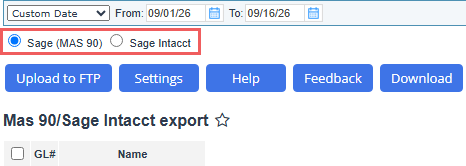
- Select your destination accounting engine (Sage (MAS 90) or Sage Intacct)
- Select an individual station (or choose all stations).
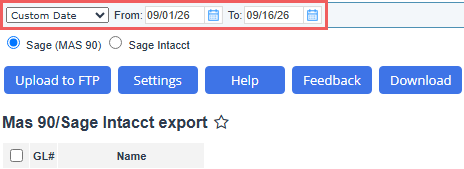
- Specify the operational period you want to export.
- Click the Upload to FTP button to transmit files directly to the FTP server configured in export settings.
- Click the Download button to save files to your workstation.
Validation
When generating files in the Sage Intacct format, CStoreOffice® runs automated data validation against your Sage Intacct export settings. Once complete, a summary notification with the following details appears on the report screen:
- Documents Exported: The number of GL journal entries and AP bills created.
- Warnings (Non-blocking): Minor issues (such as an unassigned Department ID or decimal rounding). Sage Intacct will accept and import these files.
- Errors (Blocking): Critical configuration failures (such as an unmapped GL account, missing LOCATION_ID, missing VENDOR_ID, or an out-of-balance journal entry). Files with errors will be rejected by Sage Intacct and must be corrected before importing.
Troubleshooting companion logs
To assist with troubleshooting of Sage Intacct export, CStoreOffice® produces an error log whenever the export detects an error or warning. Log file is prefixed with err_ followed by the main file name (for example, err_2058.sales.1785749835.csv)
| Severity | Trigger condition | System impact | Resolution |
|---|---|---|---|
| Error | No general ledger account mapped for an operation type | The file is rejected by Sage Intacct | Go to Export Settings > Sage Intacct > Categories, Fuel, or b and map the account |
| Error | No LOCATION_ID configured for the station |
The file is rejected by Sage Intacct | Go to Export Settings > Sage Intacct > Stations and enter a unique location code |
| Error | No VENDOR_ID configured for a purchase invoice vendor |
The file is rejected by Sage Intacct | Go to Export Settings > Sage Intacct > Vendors and enter the Sage Intacct Vendor ID |
| Error | Daily GL entry does not balance (Debits does not match Credits) | The file is rejected by Sage Intacct | Review station daily shift report for out-of-balance tender or sales adjustments |
| Error | No payment terms configured for vendor in Sage Intacct | The file is rejected by Sage Intacct | Open vendor record in Sage Intacct and assign default payment terms |
| Warning | Missing Department ID for a merchandise category | The file imports; line carries no department tag | Enter optional Department ID under Export Settings > Sage Intacct > Categories |
| Warning | Transaction amount rounded to two decimal places | The file imports successfully | You can safely ignore this warning. Decimal precision is adjusted automatically. |


