


The export settings for Sage Intacct are maintained independently from other accounting systems (such as MAS 90 or PDI).
- Open Export Settings from the user profile.
- In the left navigation pane, under Export Settings, select Sage Intacct.
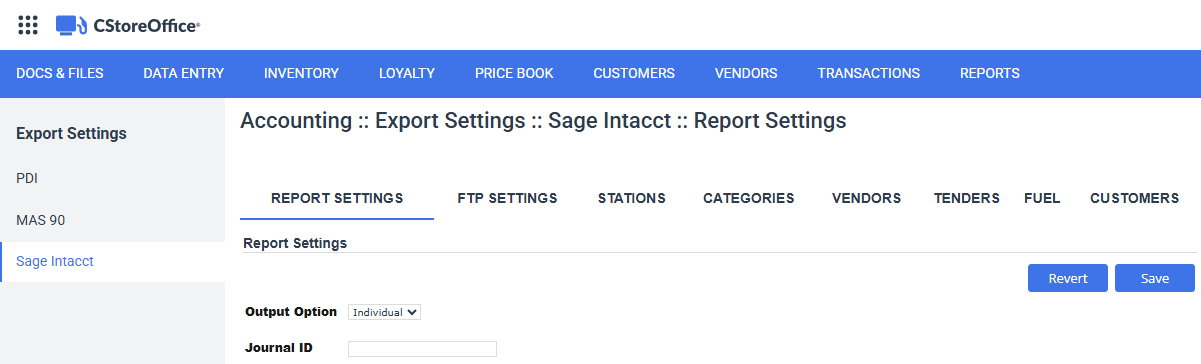
Report Settings
Configures global parameters for Sage Intacct journal creation:
- Output Option: Specifies how files are grouped upon generation (Individual station files or Combined multi-station files).
- Journal ID (Required): The target General Journal symbol set up in your Sage Intacct company (for example,
CSOJ). Accepts up to 4 alphanumeric characters.
FTP Settings
Configures automated server delivery for generated export files. Enter the host name or IP address, port number, username, password, and remote directory.
Once configured, click the Test Connection button to check if the configured FTP server is accessible.
To reuse settings from previously configured MAS 90 export settings, click the Copy from MAS 90 button.
Stations
Maps each physical CStoreOffice® location (station) to its corresponding Sage Intacct Location Dimension. LOCATION_ID must contain the unique alphanumeric identifier representing the store in Sage Intacct.
Two stations cannot share the same Location ID; duplicate or blank entries will trigger an error upon export generation.
To reuse settings from previously configured MAS 90 export settings, click the Copy from MAS 90 button.
Categories
Maps merchandise categories and system pseudo-categories to Sage Intacct sales and cost accounts:
- Sales Account #: Natural account credited during daily sales. Single segment only (no dashes).
- Cost Account #: Cost of Goods Sold (COGS) account debited when purchase invoices are received on AP Bills.
- Department ID (optional): Department dimension tag assigned to this category.
To reuse settings from previously configured MAS 90 export settings, click the Copy from MAS 90 button.
Vendors
Maps CStoreOffice® vendor profiles to Sage Intacct Vendor IDs. VENDOR_ID must contain the vendor master record identifier in Sage Intacct.
Identifiers are case-sensitive. Any purchase invoice from a vendor lacking a VENDOR_ID will fail validation.
To reuse settings from previously configured MAS 90 export settings, click the Copy from MAS 90 button.
Tenders
Maps payment methods (Cash, Credit Cards, Checks, Short/Over, Lottery Payouts) to balance sheet asset account numbers.
Tenders are configured globally at the account level. If a specific station deposits into a unique bank account, select the station from the dropdown to apply a local override. Stations with active overrides are flagged in the station selector.
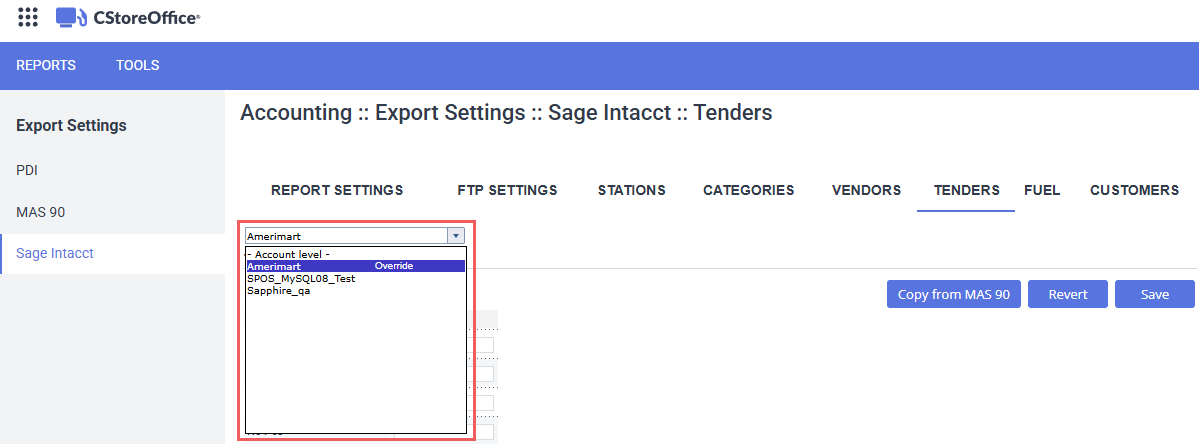
To reuse settings from previously configured MAS 90 export settings, click the Copy from MAS 90 button.
Fuel
Maps retail fuel sales, fuel inventory/cost, and fuel surcharge accounts:
- Sales Account #: Natural revenue account for fuel sales.
- Cost Account #: Cost of fuel inventory account.
- Department ID: Fuel departmental dimension tag.
- Other Charges · Account #: Fuel invoice line surcharges (such as freight, environmental fees, or terminal charges).
Fuel mappings are configured globally at the account level. Select the station from the dropdown to apply a local override. Stations with active overrides are flagged in the station selector.
To reuse settings from previously configured MAS 90 export settings, click the Copy from MAS 90 button.
Customers
Maps house accounts and commercial fleet customer profiles to Sage Intacct Customer IDs.
To reuse settings from previously configured MAS 90 export settings, click the Copy from MAS 90 button.
Copy from MAS 90
If you have previously configured MAS 90 export settings in CStoreOffice®, click the Copy from MAS 90 button to quickly populate your Sage Intacct settings for the current configuration section.
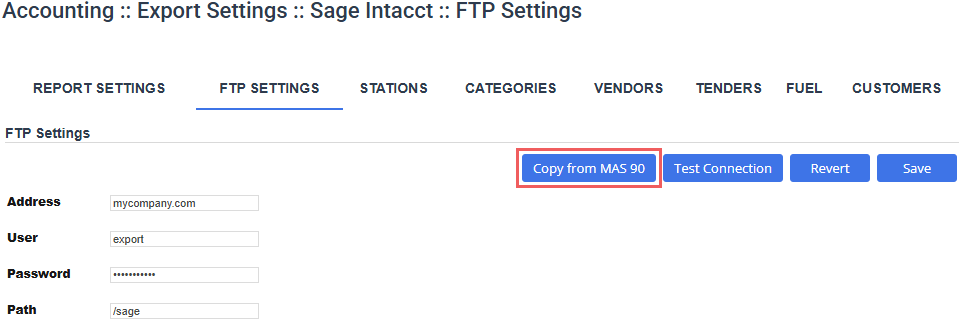
By default, only empty fields will be populated from the corresponding MAS 90 settings . Any values you previously entered manually are preserved. If you choose to overwrite existing values in the confirmation dialog, all existing Sage Intacct values will be replaced with their MAS 90 equivalents.
Click the Save in the top-right toolbar to apply the changes.


