


In the Export Settings section, you can configure the following types of export settings:
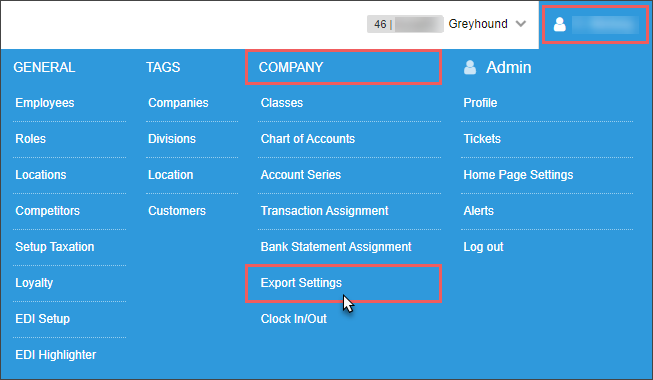
To open the Export Settings form, at the top right of the CStoreOffice® main page, go to Settings > Company > Export Settings.
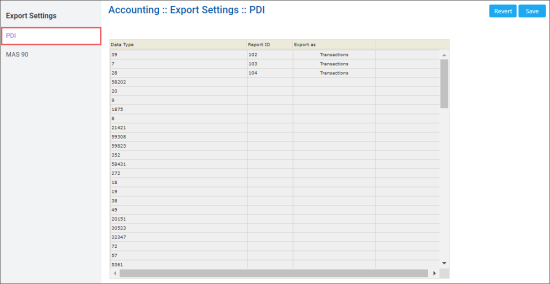
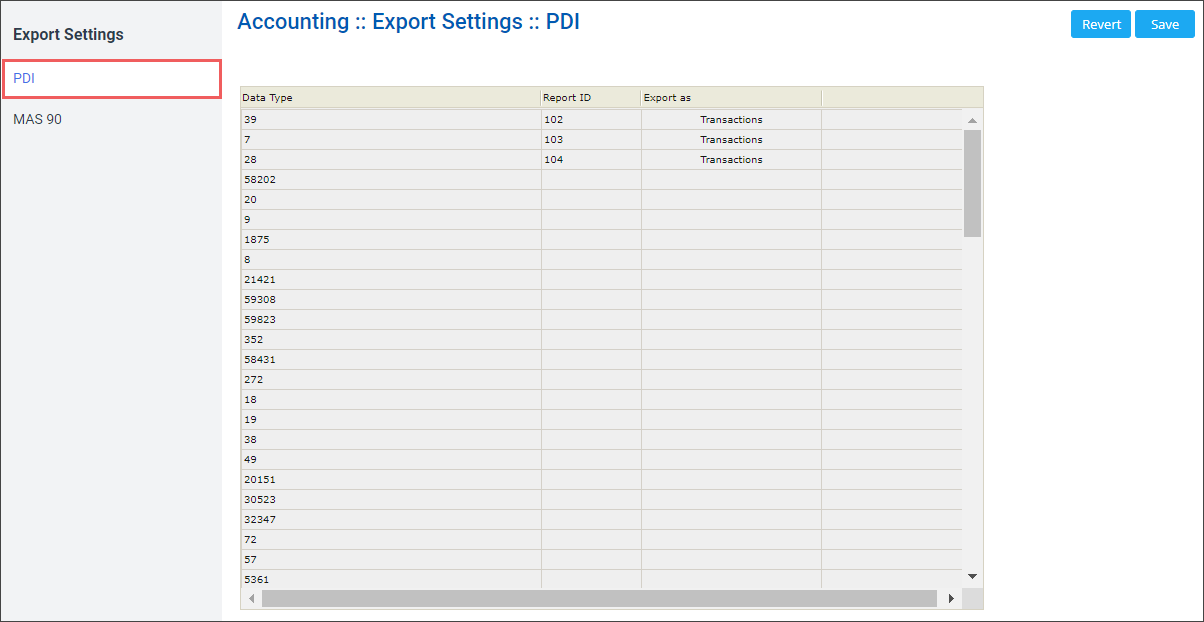
Configuring PDI Export Settings
In the Accounting : Export Settings : PDI section, you can configure the following PDI export settings:
- Data Type
- Report ID
- Export as
Configuring MAS 90 Settings
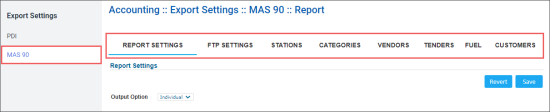
In the Accounting : Export Settings : MAS 90 section, you can configure the following MAS 90 settings:
- Report Settings
- FTP Settings
- Stations
- Categories
- Vendors
- Tenders
- Fuel
- Customers
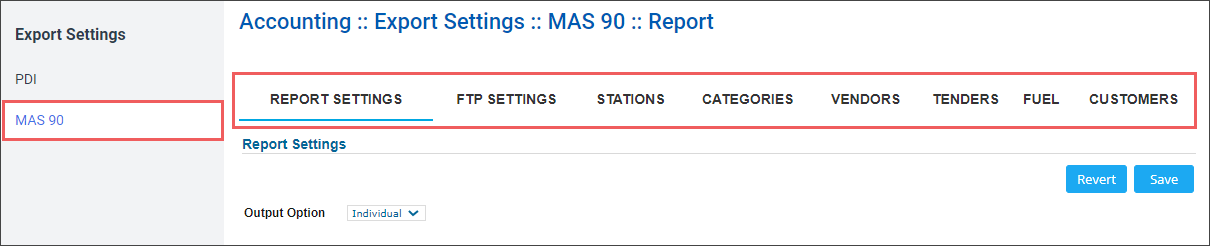
For more information on how to configure the MAS 90 settings, see Connecting to MAS90.
Configuring Sage Intacct Settings
In the Accounting :: Export Settings :: Sage Intacct :: Report Settings section, you can configure the export settings for Sage Intacct:
- Report Settings: Configures global parameters for Sage Intacct journal creation.
- FTP Settings: Configures automated server delivery for generated export files.
- Stations: Maps each physical CStoreOffice® location (station) to its corresponding Sage Intacct Location Dimension.
- Categories: Maps merchandise categories and system pseudo-categories to Sage Intacct sales and cost accounts.
- Vendors: Maps CStoreOffice® vendor profiles to Sage Intacct Vendor IDs.
- Tenders: Maps payment methods (Cash, Credit Cards, Checks, Short/Over, Lottery Payouts) to balance sheet asset account numbers.
- Fuel: Maps retail fuel sales, fuel inventory/cost, and fuel surcharge accounts.
- Customers: Maps house accounts and commercial fleet customer profiles to Sage Intacct Customer IDs.
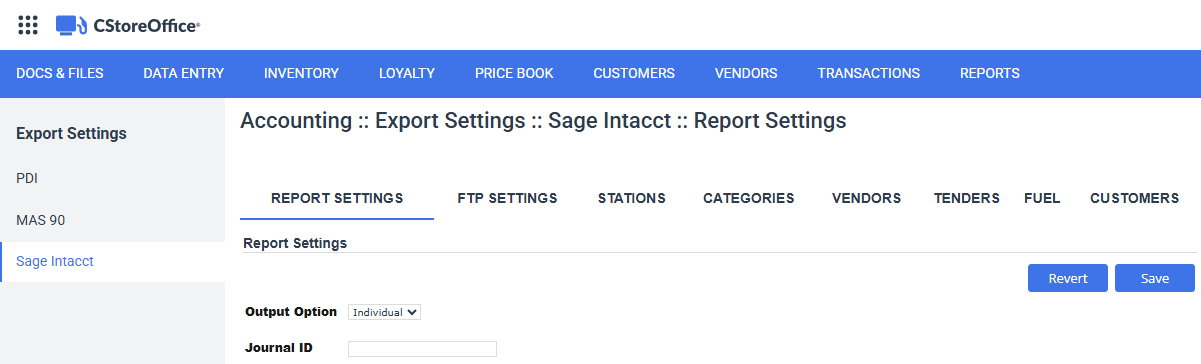
Read Connecting to Sage Intacct article for details.


