


The Location Display Settings interface allows you to configure how your locations (stations) are presented in the Go Loyalty mobile app.
Accessing location display settings
- Sign in to the Go Loyalty portal.
- Navigate to the Location Display Settings section.
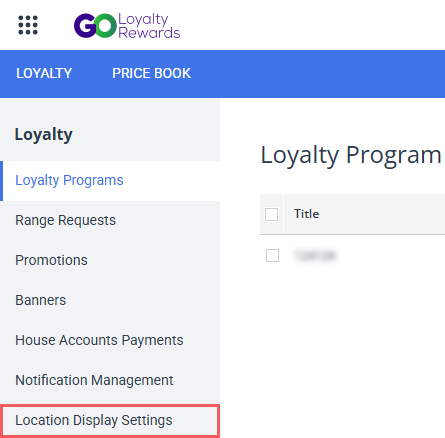
You will see a full list of your locations.
Location info
You can edit the following information for each location:
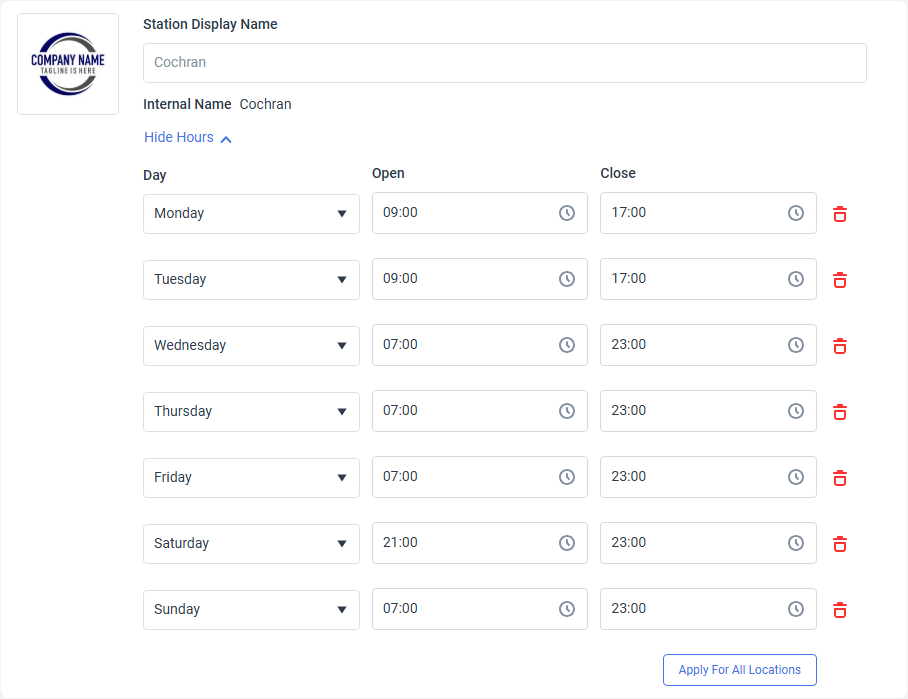
- Logo: Click a box at the left and browse for an image file.
- Station Display Name: Location name as it appears in the app. If you do not specify a value in this field, the app will use a location's internal name from CStoreOffice®.
- Show in App: Turn on this switch to display the location in the Go Loyalty mobile app.
- Click Show Hours to edit the location's working hours. If the location is closed on certain days (for example, Sundays), click the recycle bin icon at the left of the corresponding day.
To restore an accidentally deleted day, click Add Schedule Day at the bottom.
You must configure a store logo to in order for the store to appear in app. If a store lacks a logo, the Show in App toggle will be turned off and disabled.
All changes are applied automatically.
Bulk-edit location info
If you have multiple locations, you can bulk-edit their shared details to save time and avoid manual updates.

Logo
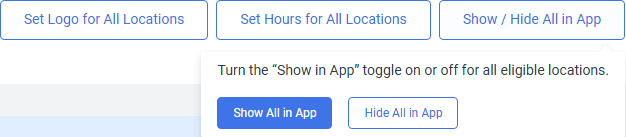
Click the Set Logo for All Location button at the top and select an image file with your company's logo.
Working hours
Click the Set Hours for All Locations button at the top and edit the common working hours in the right pane. If all locations are closed on certain days (for example, Sundays), click the recycle bin icon at the left of the corresponding day.
To restore an accidentally deleted day, click Add Schedule Day at the bottom.
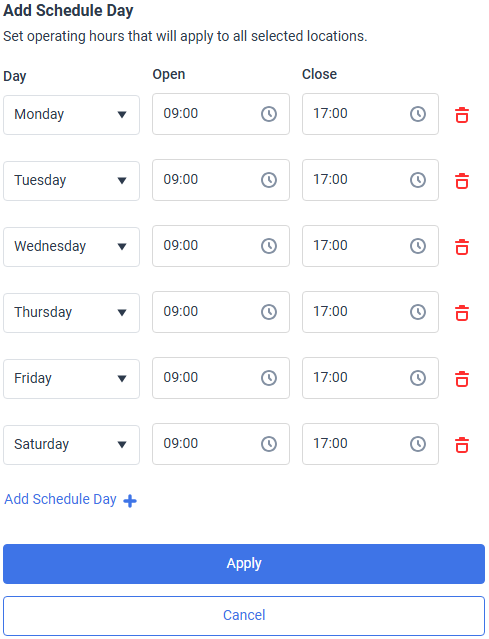
To apply new working hours, click the Apply button at the bottom.
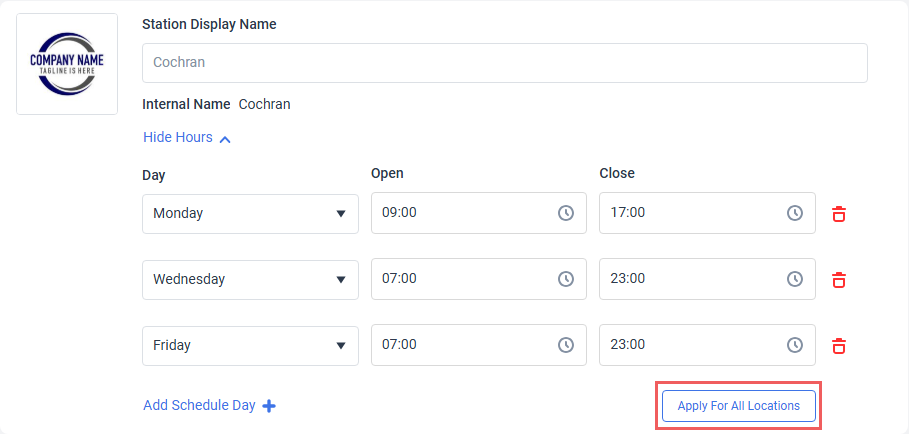
Alternatively, you can go to the configured location, expand the Show Hours section, and click the Apply For All Locations button.
Show / Hide All in App
Click the Show / Hide All in App button and select whether all eligible locations will be displayed in the Go Loyalty mobile app.
You must configure a store logo to in order for the store to appear in app.


