This section describes the specifics of writing and printing checks in C-Store Office, as well as the constituent parts of the check and working scenarios.
There are two ways you can write a check with the C-Store Office.
Example
You have hired a worker to clean up the fallen leaves after the storm. Cashier has paid a worker with a hand written check. Previously, to enter this expense to the system, you needed to create an invoice for this transaction. With the Write Check feature, you can just enter the check information into the system spending no time on creating the invoice.
You can print checks in C-Store Office in several ways.
You can create a check and save it in system without printing. For example, a cashier writes a check by hand and enters it into the system manually. For more information, see Writing a Check.
There are several scenarios you might want to follow working with checks in C-Store Office.
| Scenario | Recommended Workaround |
|---|---|
| You want to write and print a check for the regular transaction with the invoice. | Vendors>Account Payable>Write a check and send it for printing. |
| You want to write and print a check for the irregular transaction without the invoice, or to the individual in return to the occasional services. You either print the check straight after writing, or send it to the printing queue and print it any time you want. |
Transactions>Banking>Write Checks>Select the "to be printed" option. For more information, see Writing a Check . |
| You want to write a check for the irregular transaction without the invoice, or to the individual in return to the occasional services. You do not want to print the check, but you want to save the check information in the system. |
Transactions>Banking>Write Checks>Enter the check number manually. For more information, see Writing a Check . |
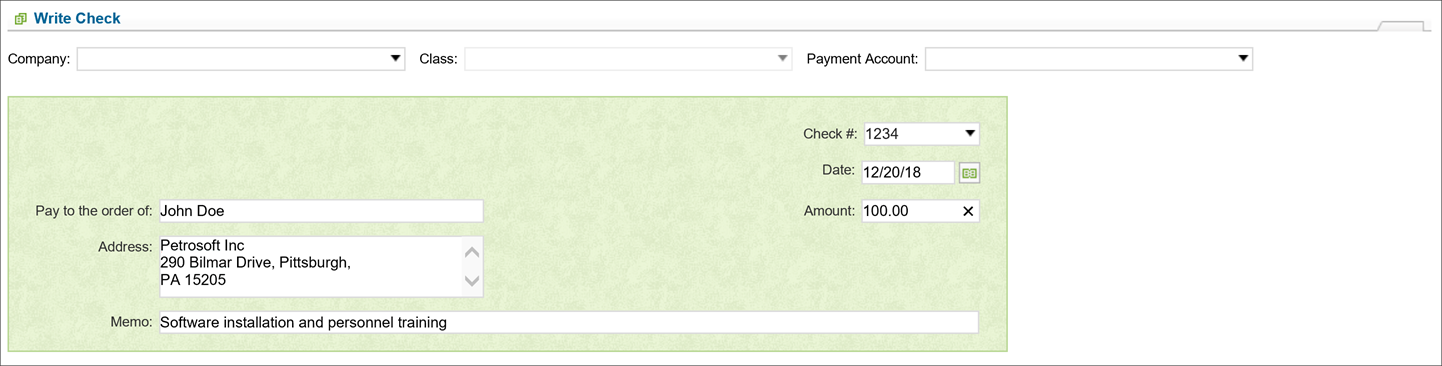
Check written via Write Check by C-Store Office contains of the following elements:
Check #. Each check has a different check number.
If you decide to print the check using the "to be printed" option, you will need to enter the check number when printing the check.
Date. The date the check is written
Use the current date on a check; never postdate it.
Amount. The sum issued in numbers.
Pay to the order of. Person or business to whom the check is written.
Address. Address of a person or business receiving the money.
Never use abbreviations when you fill in the payee information on the "Pay to the order of" line.
Memo. An optional description of the nature of the payment.
You can limit the manager's access to the certain bank accounts in the Write Checks feature.

Last updated: Tuesday, November 6, 2018
Copyright © Petrosoft, LLC

Confidentiality level – Public use
Petrosoft, LLC
290 Bilmar Drive, Pittsburgh, PA 15205
Phone: 412-306-0640
Fax: 412-202-5487
 Feedback