


The Sync Activity Report provides Head Office (HO) administrators with complete visibility into the end-to-end lifecycle of item and promotion data. Using this report, administrators can monitor inbound file intakes from external suppliers or ERP systems, audit master Price Book changes, track outbound distribution batches to dealer locations, and review store-level modifications or rejections.
Opening the Report
To open the Sync Activity Report:
- From the PIM main menu, navigate to Reports > Sync Activity Report.
- Configure the required filter criteria in the filter panel at the top of the page.
- Click the Refresh button to load the report data across the tabs.
Viewing the Report
The report organizes data across dedicated tabs representing each stage of the synchronization chain. Click the tab to view details.
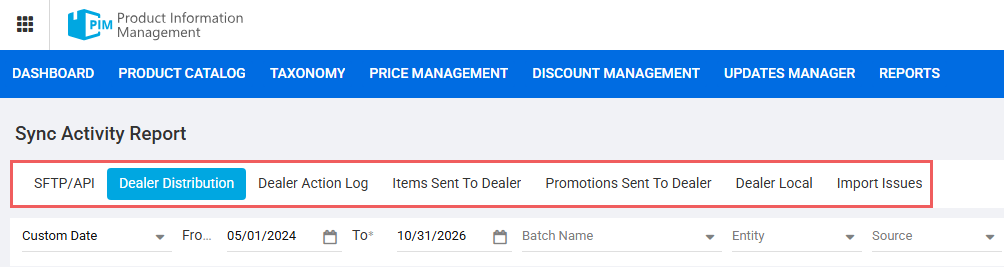
SFTP / API
Displays all inbound file batches received from external integration channels (such as daily full price book feeds). The system automatically calculates delta files (changes only) from incoming files:
- Date / Time: Timestamp when the batch was received and processed.
- File / Batch ID: Unique identification number assigned to the inbound file package.
- Batch Name: Human-readable name of the inbound file package.
- Entity Type: Indicates whether the record set contains Items or Promotions (each batch shows separate rows per entity).
- Total Records: Total count of records modified in the batch.
- New Records: Total count of new records added.
- Updated Records: Total count of existing records that has been changed or removed.
- Errors: Batches that fail validation or encounter connection errors are flagged immediately for review.
Dealer Distribution
Tracks outbound batches sent from Head Office to dealer store locations:
- Date / Time: Timestamp when the batch was received and processed.
- Batch ID: Unique identification number assigned to the batch.
- Batch Name: Human-readable name of the batch.
- Sent By: The user who initiated the update.
- Items Qty: Total item counts.
- Promotions Qty: Total promotions count.
- Destination Locations: Destination location count.
- Delivered Locations: Count of successfully delivered locations.
- Delivery Status: The summary distribution state: Delivered, Pending, or Failed.
Expanding a batch reveals individual store records, including Location ID, Location Name, delivered timestamp, and delivery error notes.
Dealer Action Log
Serves as an operational audit log of all store-level price book activities:
- Records store actions: Accepted to PB, Modified, Sent to Register, and Local Add.
- Displays item and promotion quantities associated with the action.
- Highlights record origin (HO Batch vs. Local) and includes the HO Origin Batch ID where applicable.
Items Sent to Dealer
Provides a row-by-row breakdown of every item distributed to each dealer:
- Item Identifiers: GTIN, name, category, cash register department, target location, and location tag.
- Distribution Action: New, Updated, or Deleted.
- Dealer Action: Shows whether the dealer marked the item as Accepted, Modified, or Rejected.
- Tracked Field Modifications: If a dealer modifies an item, the report highlights the changed attribute along with its before and after values for the following mandatory fields:
- Category
- CR Department
- CR Description
- Current Retail
- Taxes
Promotions Sent to Dealer
Provides a detailed breakdown of promotional campaigns distributed to dealers:
- Promotion Details: Promotion ID, Name, Type, Discount Value, Discount Type, and validity dates (Valid From / Valid To).
- Delivery & Response: Displays dealer feedback (Accepted, Modified, Rejected).
- Tracked Promotion Modifications: Logs before-and-after values whenever a dealer alters any of the following fields:
- CR Name
- Discount Type
- Items Included
- Discount Amount
- Start and End Dates
Dealer Local
Isolates catalog discrepancies by listing all items and promotions created locally at dealer registers that do not exist in the Head Office master catalog. This tab enables administrators to detect unauthorized local additions and maintain catalog compliance.
Import Issues
Displays detailed information on failed and partial imports. Expanding an issue reveals individual errors.
Filtering Report Data
The filter panel on top of the report allows you to narrow down the report to required records. Selected filters persist throughout your active session.

Common filters such as a data range, apply across all applicable report tabs. Tab-specific filters (for example, promotion ID) are applied to the specific tab only.
To filter report data:
- Select filter criteria in the filter pane on top of the report. Available filters depend on the currently selected tab.
- Click the Refresh button to update report tabs.
To remove all filters and return to the default report view (all information for the current month), click the Reset button.
Sorting Report Data
To sort report data by a specific column, click the corresponding column header cell. The sorting order is toggled with each click in the following sequence and is indicated by an arrow icon in the column header:
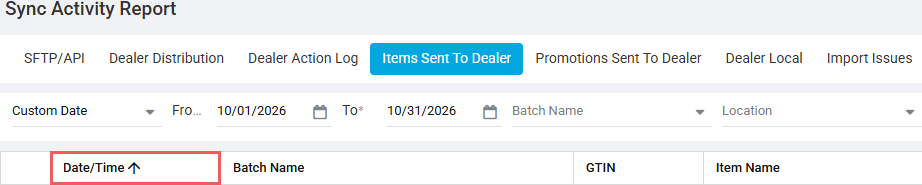
- Sort ascending (smallest to largest): arrow up.
- Sort descending (largest to smallest): arrow down.
- Do not sort: no icon.
The columns you can sort by depend on the currently selected tab.
Exporting the Report
To download data from an active tab as a Microsoft Excel spreadsheet (.XLS):
- Apply the necessary filters and select the desired tab.
- Click the Export to Excel button at the top right of the report.



