


To enhance security and reduce the risk of unauthorized access, Retail 360 Mobile supports multifactor authentication (MFA, also known as two-factor authentication or 2FA). It provides an extra layer of protection beyond traditional passwords, making it more difficult for unauthorized users to gain access to the system, even if they obtain email and password.
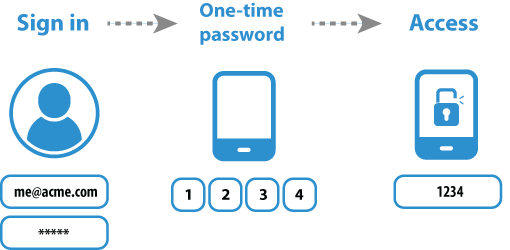
MFA requires users to provide a one-time passcode (OTP) as a second authentication factor after signing in with their email and password. The OTP is generated through an authentication app installed on the user's mobile device or sent to the user's email address.
Supported MFA apps
Retail 360 Mobile supports all authentication apps capable of generating time-based OTP, including:
- Google Authenticator (Android, iOS)
- Microsoft Authenticator (Android, iOS)
- FreeOTP (Android, iOS)
- Authy (Android, iOS, Windows, macOS, Linux)
- LastPass Authenticator (Android, iOS)
- Duo Mobile (Android, iOS)
For better security, do not install the MFA app on the same device as Retail 360 Mobile. This reduces the risk of both your credentials and MFA codes being compromised if the device is lost or stolen.
OTP codes are time-based, so it is essential to enable automatic time updates on your MFA device. If the device's time is out of sync, the authentication app may generate an incorrect OTP, resulting in login failures.
Signing in with MFA
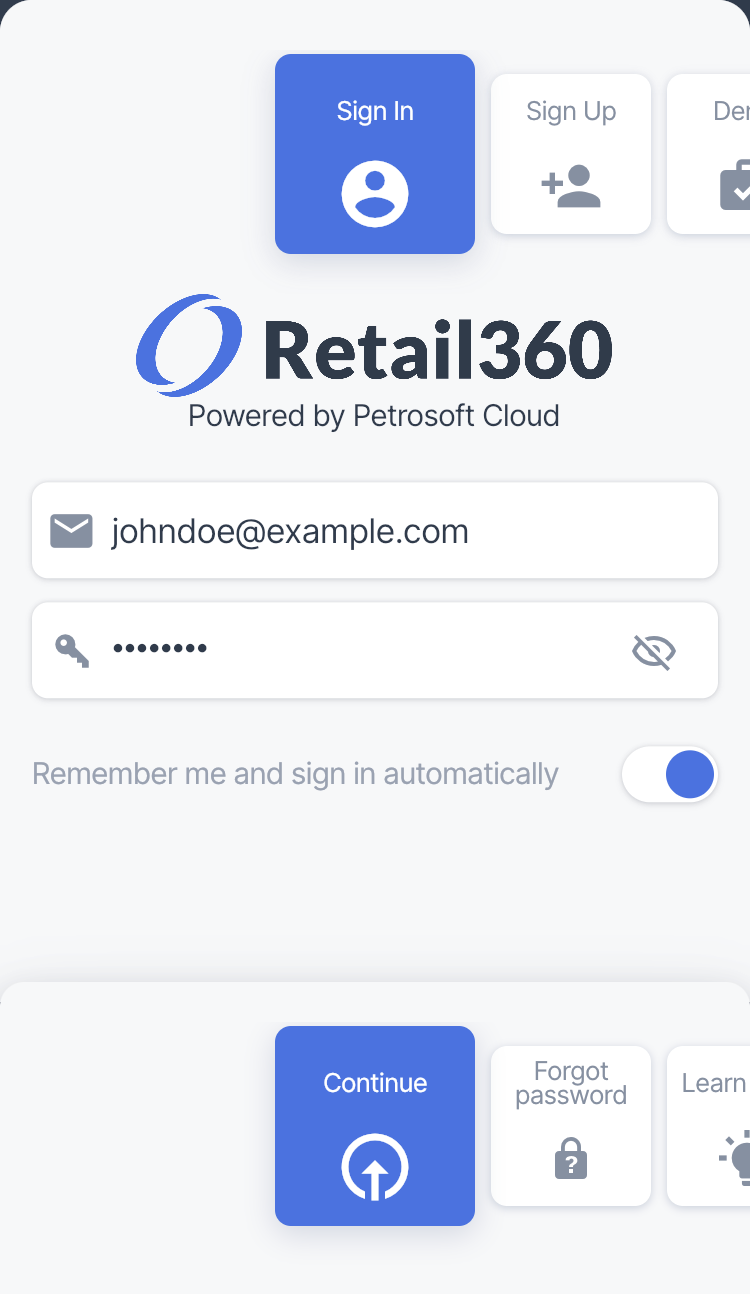
- Log into the Retail 360 Mobile using your email address and password.
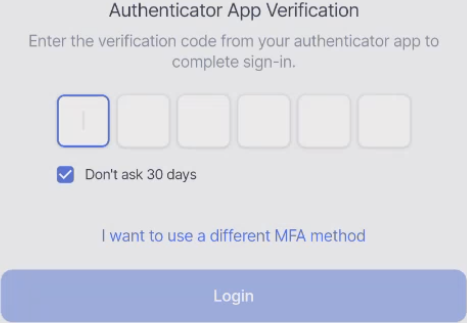
- Depending on your preferred authentication method, enter the 6-digit verification code from your authenticator app or sent to your account's email.
-
Select Don't ask 30 days so you will not be prompted for an authenticator code every time you log in for the next month from the same device and browser.
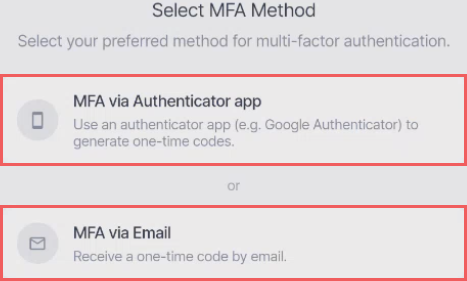
- If you have several MFA methods configured, tap I want to use a different MFA method:
- Tap Login to verify the OTP code.
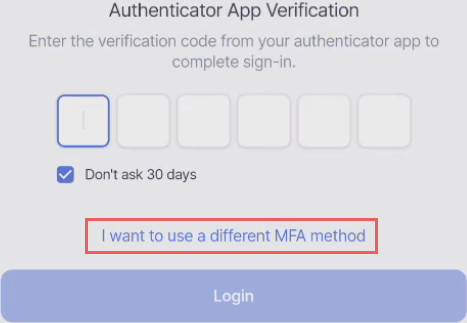
and tap the MFA method you want to use:
Resetting the password
The linked MFA app will continue to function after you change the password in Retail 360 Mobile.
Simply sign in with the new password and enter the OTP code from the app in the Retail 360 Mobile authentication form.


