In Retail 360 Mobile, you can work with the following types of cycle count tickets:
Working with pending cycle count tickets
Pending cycle count tickets are the tickets that have been created in Retail 360 Mobile, but are not confirmed yet. Such tickets are marked with a yellow clock icon. To view the full list of pending tickets, open the Cycle Count screen and search for "pending".
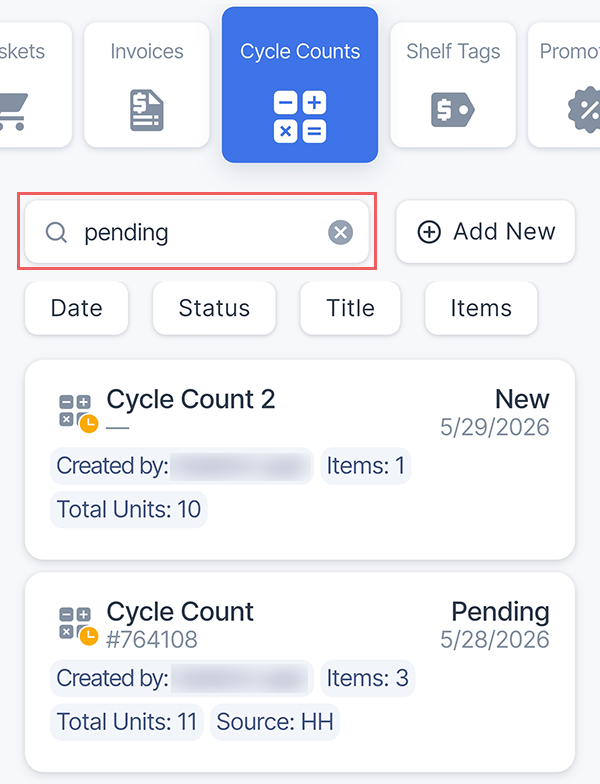
The pending tickets may be in a New or Pending status:
- New status is assigned to unfinished tickets that have not yet been uploaded to Petrosoft Cloud Platform. The ticket is automatically saved on the device when you tap the Back button or close the app.
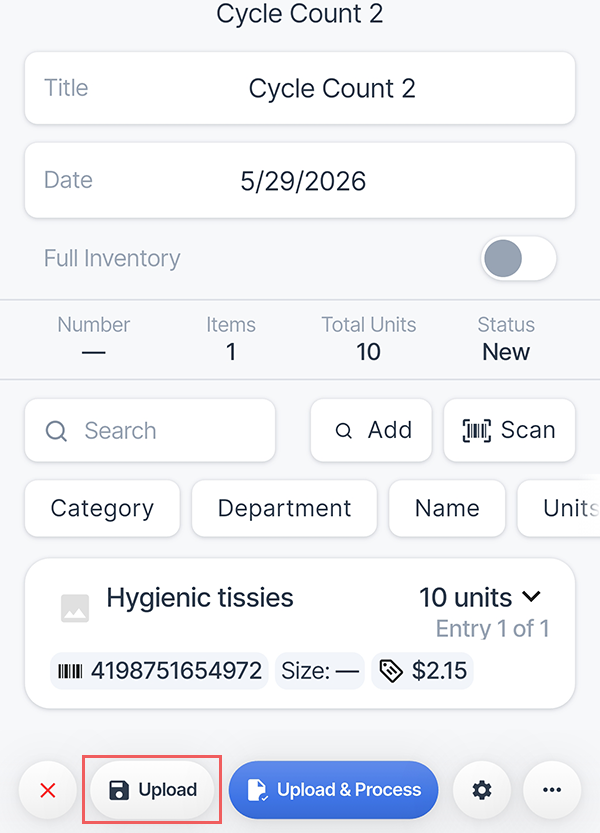
- Pending status is assigned to tickets that have been uploaded to the cloud, but are not confirmed yet. To move a ticket to the Pending status or update the modified ticket details in the cloud, tap the Upload button.
New tickets are not available in CStoreOffice®. To update information in the cloud, switch them to the Pending status.
Ticket preprocessing
If the ticket contains multiple entries for the same item, they will be merged into a single entry. Tap the Upload button to confirm merging.
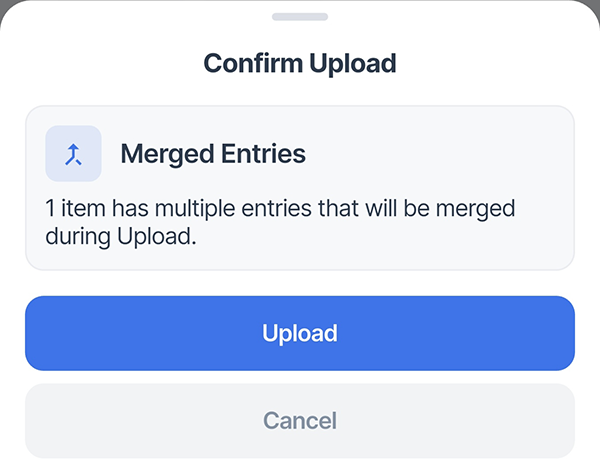
Quantities specified for each merged item will be summarized in the resulting entry.
You also cannot have parent items in the cycle count. If such item is detected in a ticket, it will be automatically replaced with child items. The quantity of the resulting items will be re-calculated based on the pack size.
Working with processed cycle count tickets
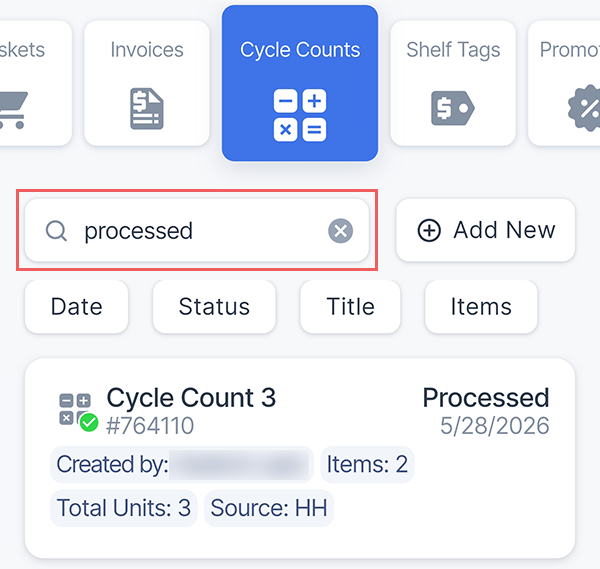
The information from processed tickets is considered confirmed and becomes available in inventory reports. Such tickets are marked with a green check icon. To view the full list of processed tickets, open the Cycle Count screen and search for "processed".
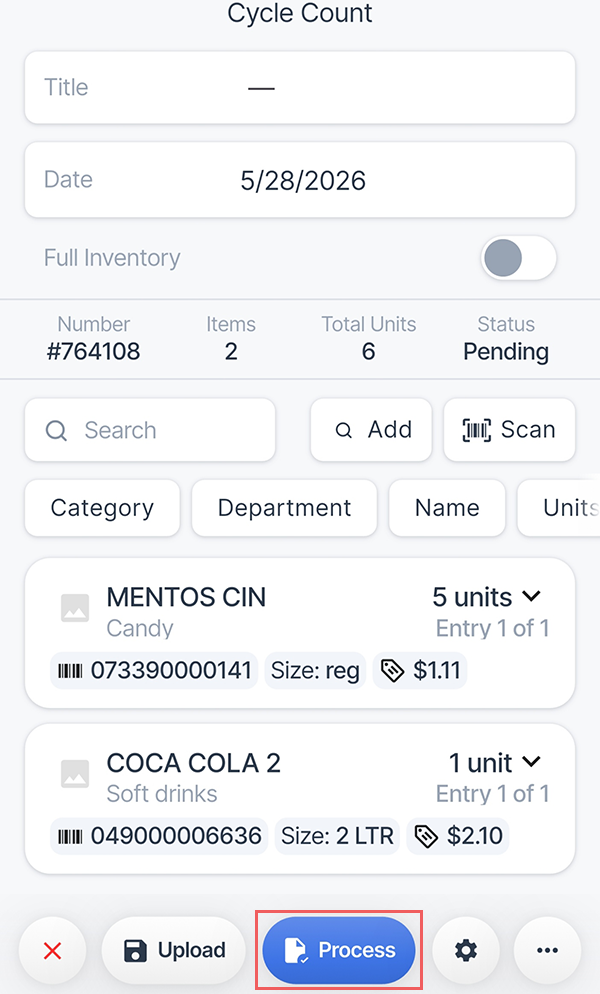
To confirm a pending ticket, open it and tap the Process button at the bottom.
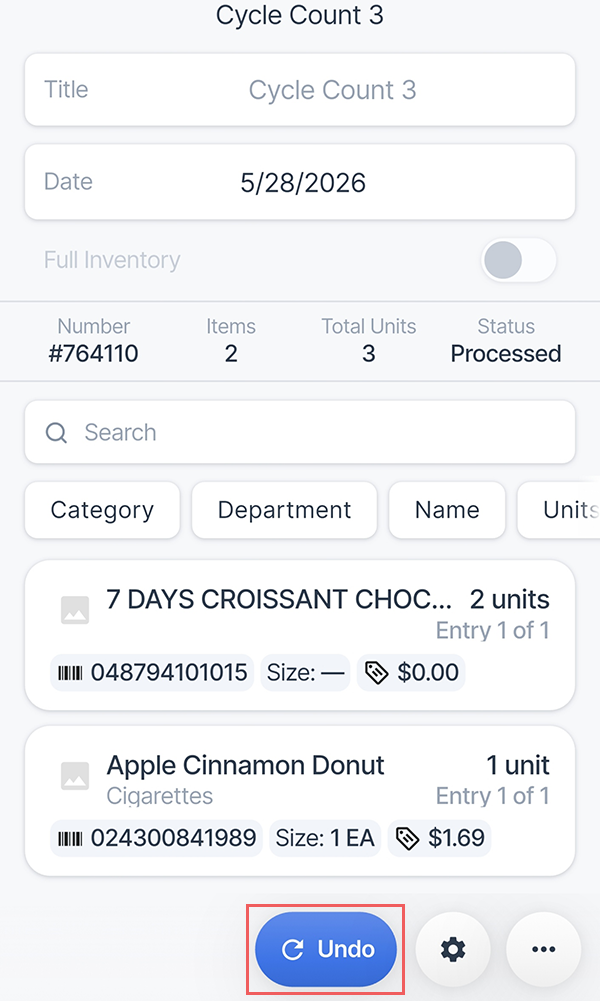
To move the processed ticket back to the Pending status, open it and tap the Undo button at the bottom.
Navigating through tickets
If a Cycle Count screen contains a large number of tickets, it might be difficult to review on the smartphone screen. Retail 360 Mobile offers search and sorting options that let you easily navigate through the tickets list.
To search for the specific ticket in the list, type any part of its description or metadata in the search field. The list will be filtered to the matching tickets.
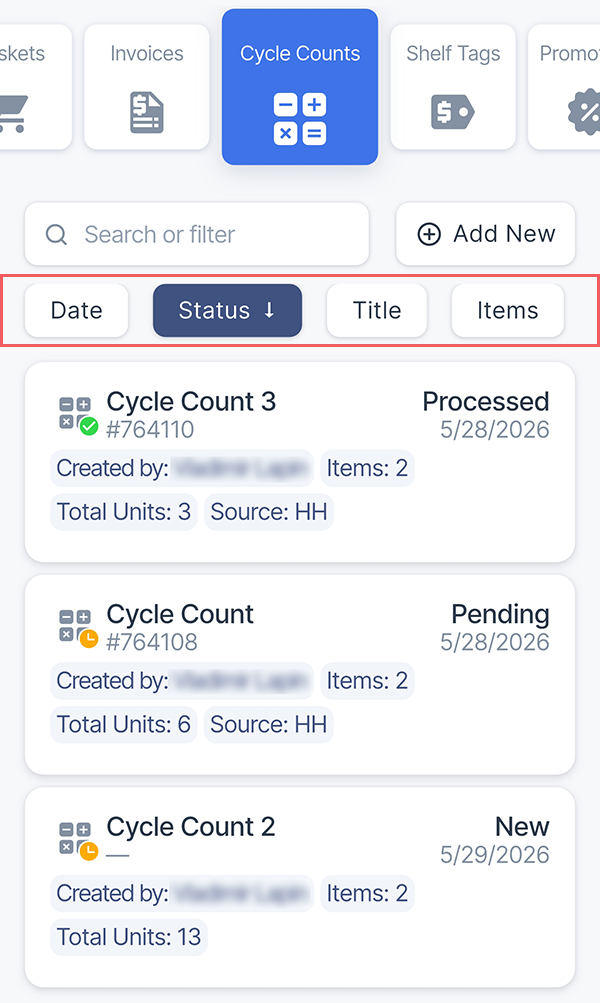
To sort the list by the specific criteria (date, status, title, or a number of items), tap the corresponding button on top of the list. Tapping the button again changes the sorting order or clears the selection.
Exporting a cycle count ticket
Retail 360 Mobile allows you to export cycle count tickets into various formats that can be imported into popular inventory management systems:
- RGIS Inventory
- DC5 Inventory
- Washington Inventory
- Scan Shark Inventory
- CStoreOffice® Inventory
Export is not available for cycle count tickets with the New status.
To export a cycle count ticket:
- Open the ticket.
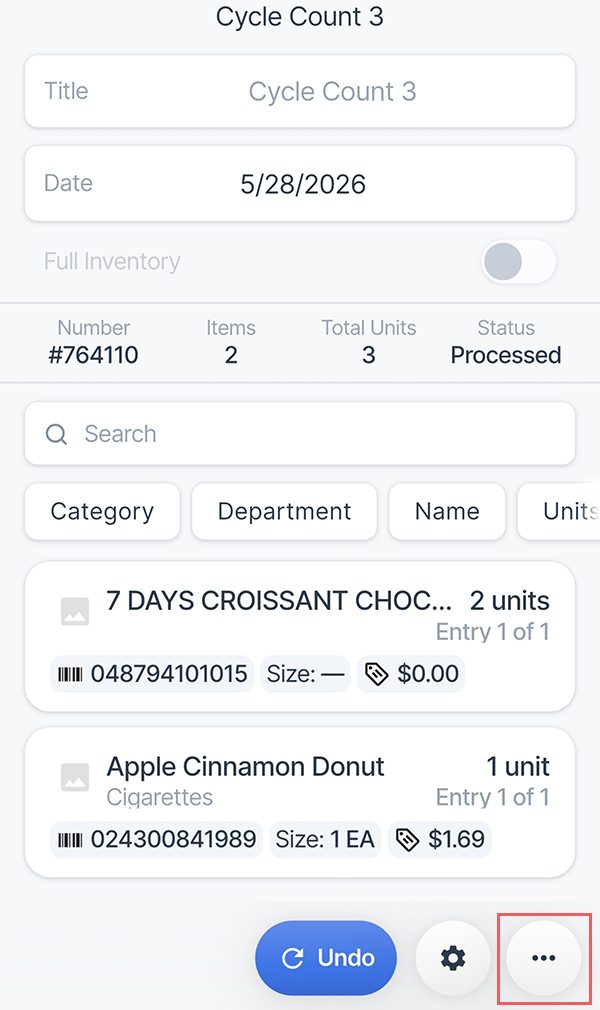
- Tap the more options (three dots) button at the bottom.
- Select Export from the popup menu.
- Tap the desired format.
- The exported file will appear in a couple of minuted in your Feed.
Adding cycle count ticket items to the basket
Retail 360 Mobile allows you to quickly create a basket with all items from the cycle count ticket.
Automatic basket creation is not available for cycle count tickets with the New status.
To create a new basket with cycle count ticket items:
- Open the ticket.
- Tap the more options (three dots) button at the bottom.
- Select To Basket from the popup menu.
A new basket called "{Cycle Count ticket title} Items" will be created in Retail 360 Mobile.
Deleting a cycle count ticket
You can only delete new or pending tickets. To delete a processed ticket, move it back to the Pending status.
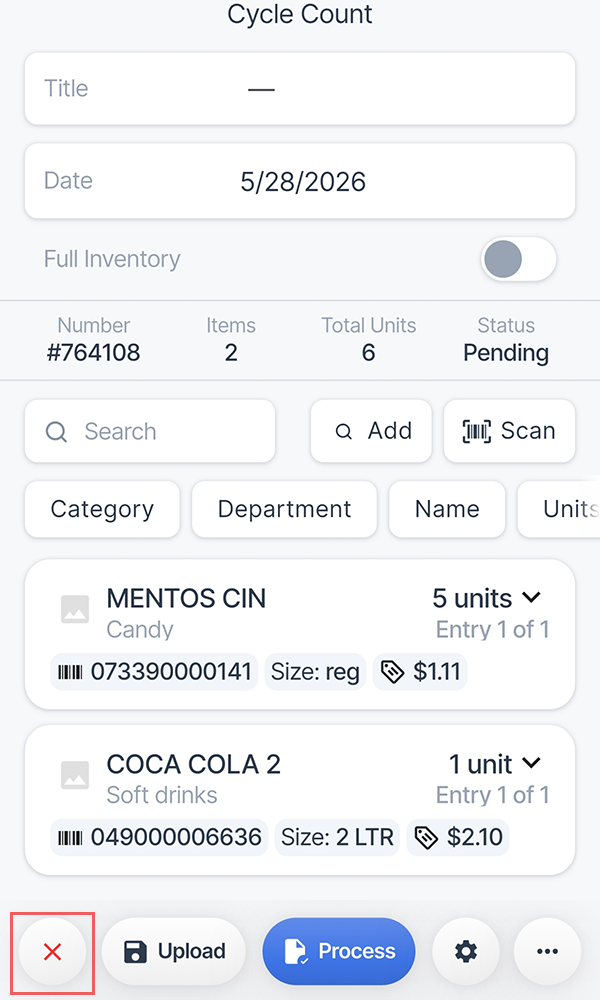
To delete a pending ticket, open it and tap the red cross button at the bottom.