When you perform a cycle count or full inventory, you create a ticket, which lists the counted items. Once the inventory is done, the worker submits the data by uploading the ticket for processing.
To create a cycle count ticket:
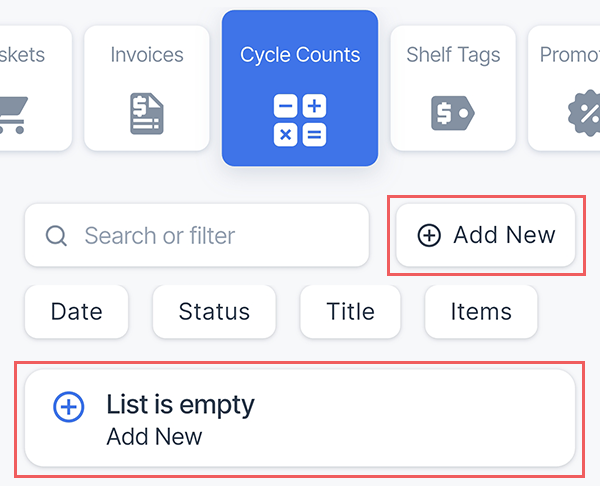
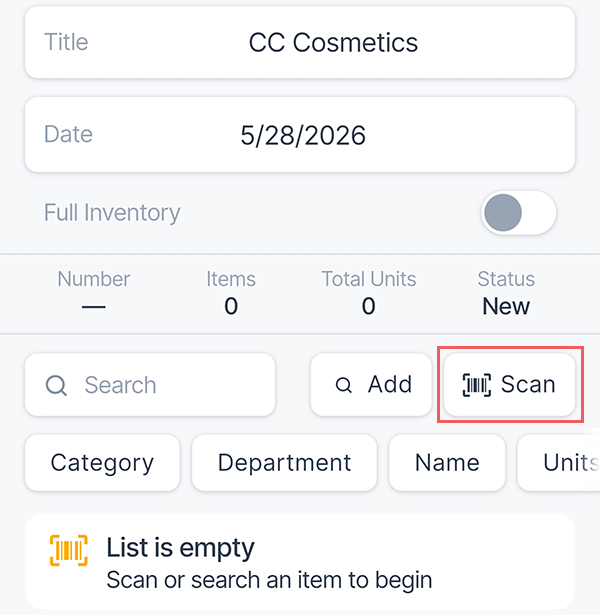
- On the Cycle Count screen, tap the Add New button or an empty list (if no tickets are currently available).
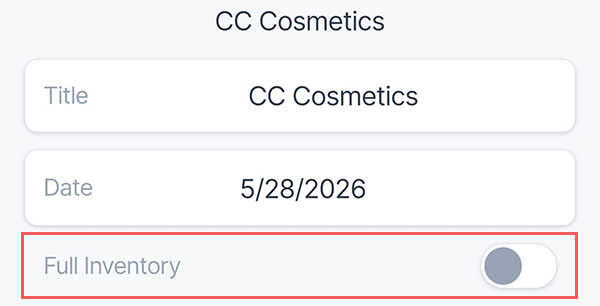
- Specify the ticket title. It can be any name or description that helps you and your team identify the specific task, location, or group of items being audited.
While it is possible to provide the same names for multiple tickets, we recommend using unique names for faster search and navigation. - Select the date when the cycle count is performed. By default, this field is automatically populated with the current date.
- Select whether you perform a cycle count or a full physical inventory.
Adding items to the ticket
You can add items to the cycle count ticket either be searching an item in your price book or by scanning the item's barcode.
Adding items from price book
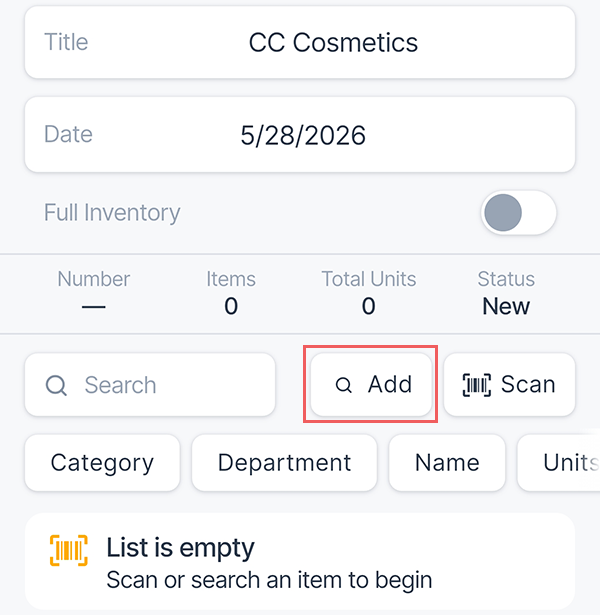
- Tap the Add button on top of the list.
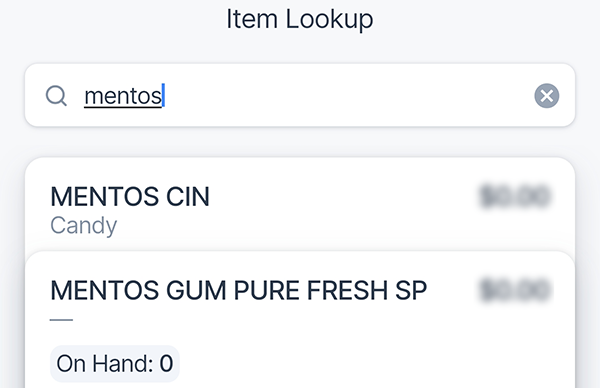
- Start typing an item's name. The lookup will show the most relevant item from your price book.
To see other items that match the search, swipe up the item's card. - Tap the applicable item's card to add it to the ticket.
Scanning item's barcode
- Tap the Scan button on top of the list.
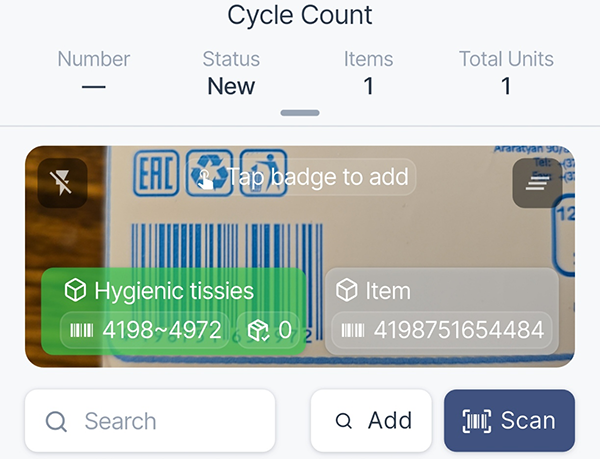
- Point the device camera to the barcode.
- Retail 360 Mobile will search the price book for the corresponding item and show the overlay bages that match the scanned barcode. Tap the badge to add an item to the ticket.
Accelerating cycle count workflow
Retail 360 Mobile allows you to fine-tune the item addition process to best suit your preferred workflow. Tap the gear icon at the bottom of your cycle count screen and configure the options.
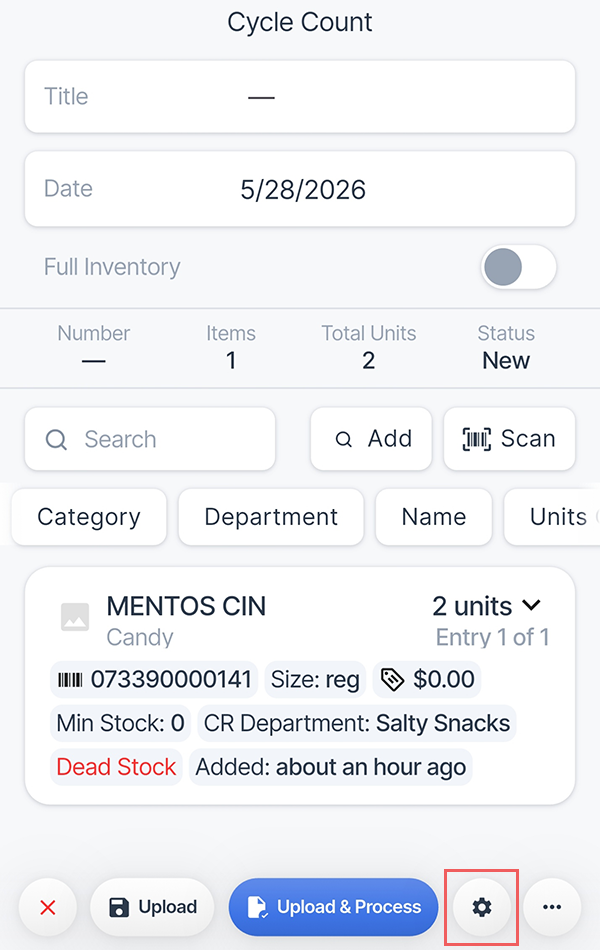
- Vibrate on scan: Vibrate your device to provide tactile feedback when the barcode is scanned.
- Open qty keyboard on item added: When the item is added, automatically focus an items count field and open a keyboard to type in a number of items.
- Add instantly when barcode recognized: If Retail 360 matched the scanned barcode with a price book item, automatically add this item to the cycle count without tapping the badge. We recommend to enable Vibrate on scan option for a tactile feedback to avoid scanning the same item multiple times.
- Compact item cards: Hide extra details from item cards in the cycle count ticket. Recommended for long lists.
Updating item details
It is not necessary to add each item one-by-one. If you see the exact amount of items on a shelf, simply tap the plus or minus icons on the item card to specify a quantity.
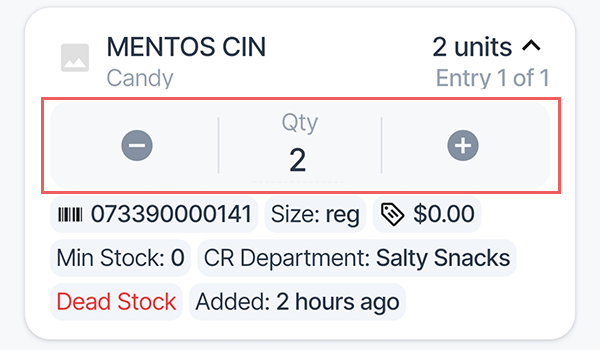
If you prefer this inventory scenario, enable Open qty keyboard on item added option. It automatically focus an items count field and open a keyboard to type in a number of items when the item is added.
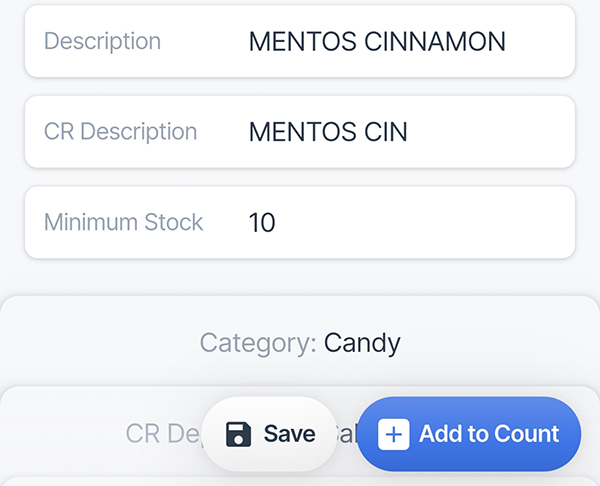
To view or adjust the item details directly from the cycle count form, tap the item card. To return to the cycle count ticket, tap Save or Add to Count buttons at the bottom.
Navigating through items
If a cycle count ticket contains a large number of items, it might be difficult to review on the smartphone screen. Retail 360 Mobile offers search and sorting options that let you easily navigate through item lists.
To search for the specific item in the list, type any part of its description in the search field. The list will be filtered to the matching items.
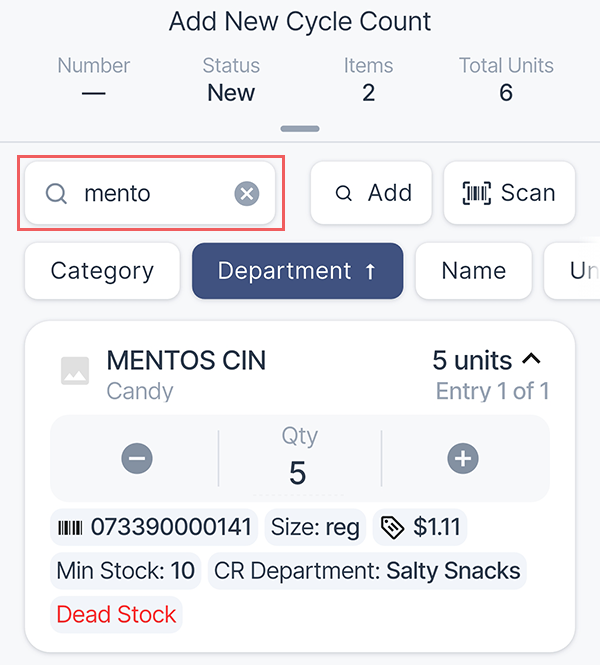
To sort the list by the specific criteria (category, department, name, or quantity), tap the corresponding button on top of the list. Tapping the button again changes the sorting order or clears the selection.

Removing an item from ticket
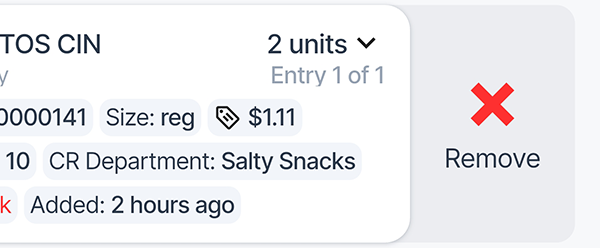
If you have accidentally added a wrong item to the cycle count ticket, swipe the item's card to the left and tap Remove.