MOP Transaction is an all-in-one report for sales analysis and cash register control. It replaces several legacy reports — including the MOP Sales Consolidated, MOP Summary, and Miscellaneous Summary reports. By centralizing these functions into a single, configurable interface, users can now transition seamlessly from high-level fund allocation overviews to granular, transaction-level journal reviews without ever leaving the page.
This article describes the specifics of accessing and interpreting the MOP Transaction report.
Interpreting the report
The report uses a hierarchical row structure, allowing you to "drill down" to details. By default, the report follows the following nesting order:
- Location: The specific site or store tag.
- Business date: The day the sales occurred.
- Method of Payment (MOP): The primary tender used (Cash, Credit, and so on).
- Category / department: The retail grouping of the items sold.
- Item / SKU: The specific product or service sold.
You can expand or collapse a rows using the plus / minus icon next to it.

The report includes the following fields:
| Field | Description |
| Location | The currently opened level of hierarchy. |
| Qty | The quantity of an item sold, aggregated for the current hierarchical level. |
| Amount | Sales amount, aggregated for the current hierarchical level. |
The report is fully customizable - you can build custom views by adding or removing fields.
Filtering and sorting the report data
The report offers powerful filtering and sorting options to help you to drill down into the data and uncover the specific details you need.

- To adjust the report interval, select a predefined period from the dropdown menu or enter a custom date range.
- To narrow down your results, use the Advanced Filters button and choose one or more filtering criteria from the Filter By list:
- Locations: Select stores to be shown in the report.
- Transaction ID: Search for the specific transaction.
- MOP: Select the methods of payment to be shown in the report. To ensure precise financial reconciliation, the report handles tender types with specific logic:
- Single tender: If a transaction was paid for using only one MOP (for example, entirely in cash), the data is assigned directly to that MOP group.
- Split tenders: If a customer used multiple payment methods (for example, $10 cash and $20 credit), the transaction is assigned to a dedicated "Split" category. This prevents the inflation of transaction counts and ensures that the retail composition of the sale is accurately reflected in a separate reporting bucket. To exclude split tenders from the report, select the Exclude Split MOPs option in the MOP section.
- Cash Register: Select specific cash registers from locations.
- CR Department: Select price book departments to be shown in the report.
- Retail Group: Transaction category based on customer's merchandise composition (basket):
- Store: The transaction contains only non-fuel items (snacks, beverages, groceries, and the like).
- Fuel: The transaction contains only fuel items.
- Store & Fuel: The transaction is a "mixed basket" containing both fuel and non-fuel items (for example, a customer who paid for gas and a coffee in a single transaction).
- Event: Select cash register events you are interested it.
- Select a transaction amount range or an exact amount.
- Specify an item by name or GTIN.
- To group the report data by one or more fields and calculate subtotal values for that groups, select the fields from Subtotal list:
- Business Date: Transaction date.
- Location (store).
- MOP: Method of payment.
- Retail Group: Transaction category based on customer's merchandise composition (basket).
- CR Department: Price book department.
- GTIIN: Global Trade Item Number.
- Transaction ID.
- Transaction Type.
- CR: Cash register.

To change the order of subtotals, drag and drop the selected criteria using the dots icon in subtotal boxes.
To apply selected filters, click the Accept button. The filters you choose are displayed below the filtering settings.

Saving filters
Save your favorite filters to quickly apply them again in the future:
- Specify the filtering criteria.
- Click Save next to the filtering settings.
- Name your saved filters.
To apply a saved filter, select it from Saved Filters dropdown.

Exporting report
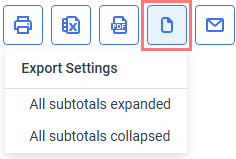
You can print the report, send it by mail, or export the report data in various formats for further analysis or sharing with colleagues.

The following export formats are supported:
- PDF: Click PDF button above the report.
- Microsoft Excel 2007: Click Excel button above the report.
The exported report will include only the data that matches your chosen filters. If the report is grouped, select whether to export all subtotals, or only the ones that are currently expanded: