


This section describes the specifics of accessing and interpreting the GPM Retail Change History report.
Opening the Report
To open the report, from the CStoreOffice® main page, go to Reports > Price Book > Retail > GPM Retail Change History.
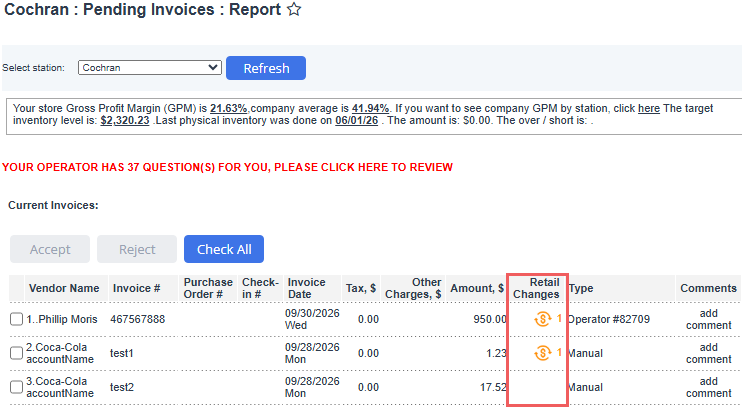
You can also access this report by clicking the Retail Changes counter/badge in pending invoices. In this case, the report data is automatically filtered by the specific invoice, status and location.
Interpreting Report Data
The report provides a centralized audit log and management console for all retail price adjustments calculated by the Auto GPM Following feature across manual and EDI invoices. From this report, you can:
- Track proposed, accepted, rejected, and manually overridden retail price changes.
- Analyze margin and cost impacts (old vs. new cost, old vs. new retail, delta percentages, and resulting margins).
- Directly access the originating source invoices.
- Revert applied price changes back to their previous retail values directly from the report grid.
Report Summary KPIs
At the top of the report, summary KPI cards provide counts for all price change events within the selected date range:
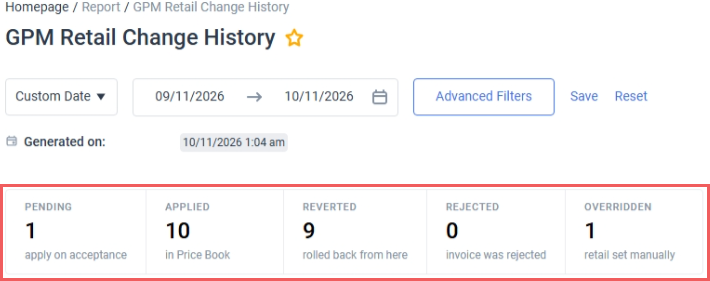
- PENDING: Items with proposed Auto GPM Following retail adjustments on pending invoices that have not yet been accepted.
- APPLIED: Retail adjustments that were approved during invoice acceptance and successfully written to the Price Book.
- REVERTED: Previously applied price changes that were manually rolled back to their prior retail price from this report.
- REJECTED: Proposed retail updates that were discarded because the underlying invoice was rejected or deleted, or the change was unselected during acceptance.
- OVERRIDDEN: Items where the user manually typed a retail price on the invoice line or edited the retail in the Price Book after the calculation, superseding the automated recommendation.
When applicable, an alert banner "Applied changes can no longer be reverted automatically" appears above next to the summary. If an item's retail price is modified in the Price Book (manually, via promotion, or by a subsequent invoice) after the Auto GPM Following change was accepted, the system disables the one-click Revert action to prevent overwriting newer pricing data. Expand the row to review the historical applied retail against the current Price Book retail and update the item manually in Price Book if needed.
Report Data
- Status: The current lifecycle state of the change.
- Item: Price book item description and UPC/VIN or Item ID. Clicking the item name opens the Price Book item card.
- Source invoice: Hyperlink to the invoice where the cost change occurred. Clicking opens the invoice view.
- Invoice date:The posting/invoice date of the source invoice.
- Cost: Displays previous cost and the new invoice unit cost.
- Cost Δ: Cost variance expressed as percentage change and cost difference.
- Retail: Displays previous retail and proposed/applied retail. For reverted items, displays the restored retail price.
- Retail Δ: Retail variance expressed as percentage change and retail difference.
- Target GPM: The configured target gross profit margin percentage used to generate the retail recommendation.
- Resulting GPM: The actual gross margin percentage achieved after applying the configured Rounding Rule.
- Action: Execute an action for the current row.
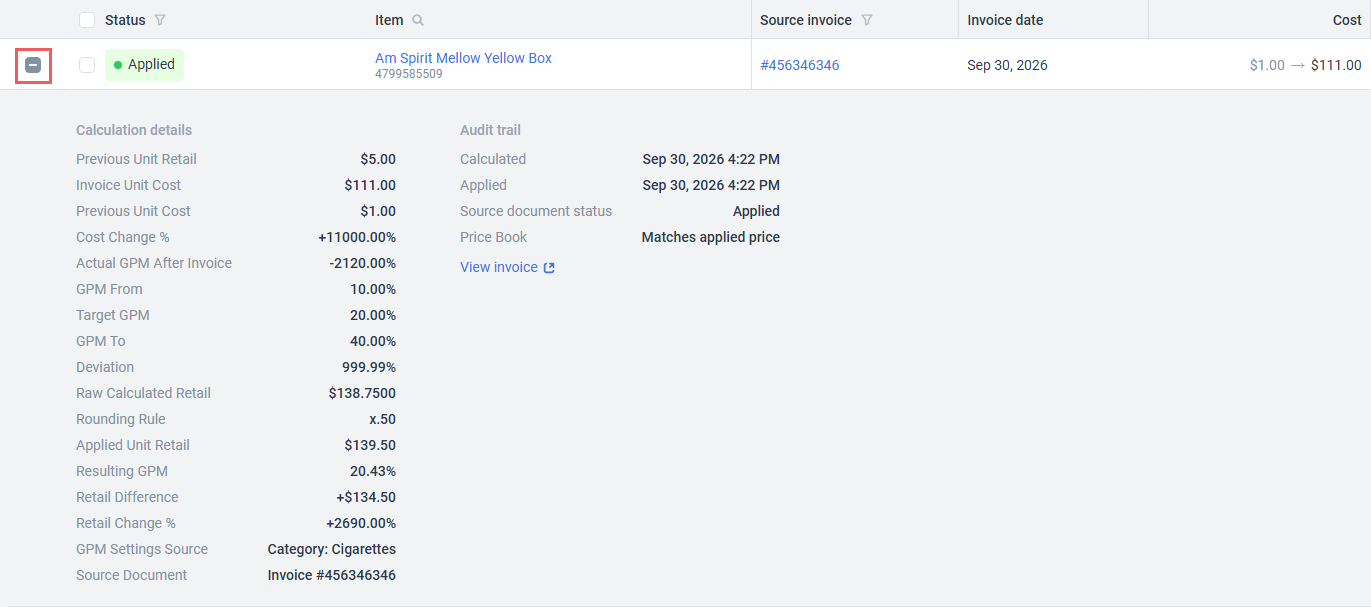
Expand the row for detailed calculation parameters.
Reverting an Applied Retail Price Change
If an applied price change was accepted by mistake or needs to be rolled back:
- Locate the item row.
- Verify that the Action column displays the red Revert link and click it.
- Confirm the action by clicking the Revert Retail button in the popup.
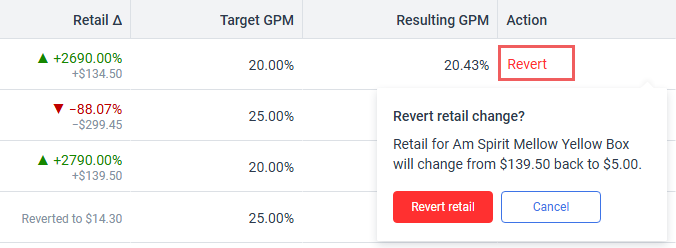
CStoreOffice® restores the previous retail price in the Price Book and the item status changes to Reverted. The updated price is queued for POS transmission.
Filtering Report Data
To narrow down the report scope, limit the date range it covers by selecting a predefined time period from the dropdown or specifying a custom date range.

Click the Advanced Filters button to expand the extended filters section that allows you to further filter report data by:
- Price book item name, ID, or UPC
- Invoice number
- The current lifecycle state of the change
- Location (store)
- Vendor
- Retail change direction (increased / decreased)

Click the Accept button to apply advanced filters and rebuild the report or the Cancel button to close the Advanced Filters box.
If you open the report from the Retail Changes counter/badge in pending invoice details, the report data is automatically filtered by the specific invoice, status and location.
To reuse the selected filters preset, click Save and specify the saved filter name. You can quickly apply saved filter by selecting the preset from the dropdown next to the Advanced Filters button.

Inline Filters
Alternatively, you can apply filters directly from the report by clicking the Search / Filter icon in the column header and specifying the filtering criteria (only supported for Status, Item and Source invoice columns).

Additional Actions

- To reload the report, click the Refresh button.
- To print the report, click the Print button.
- To save the report as the Microsoft Excel spreadsheet (.XSL), click the Excel button.
- To save the report as the Adobe PDF document, click the PDF button.
- To save the report as the Comma-Separated Values (.CSV file, click the Blank sheetbutton .
- To send the report to the specified email address, click the Mail button and specify the recipient, subject and description. The report will be attached to the email message as the Microsoft Excel spreadsheet (.XSL).


