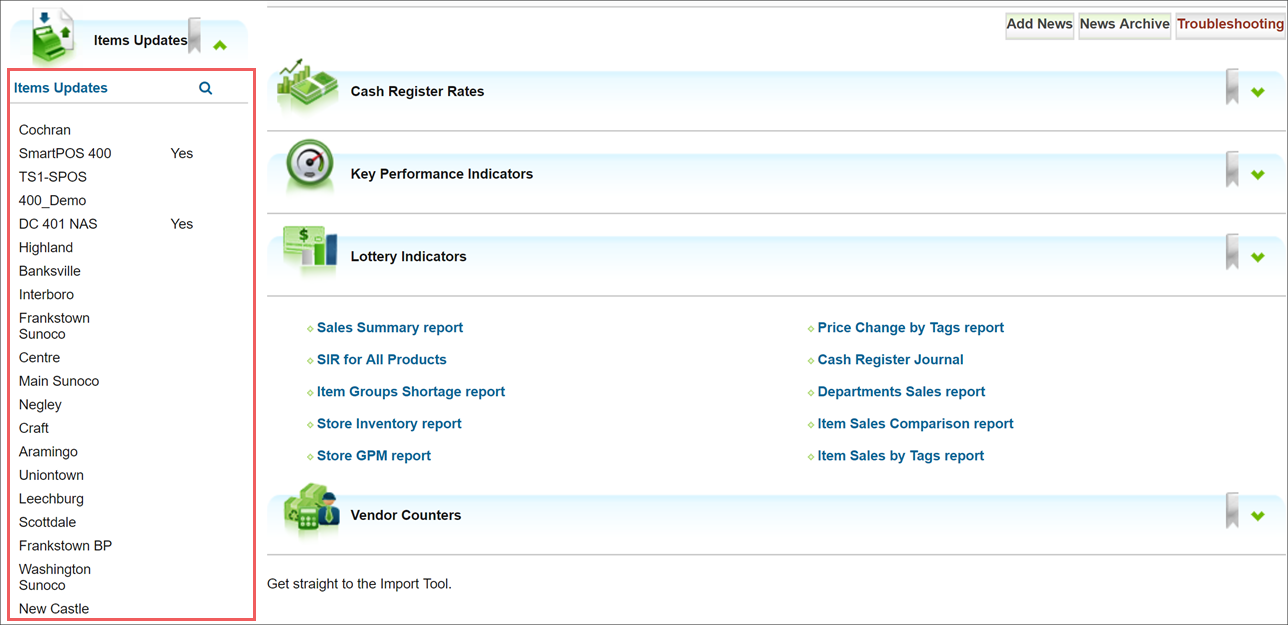
Cash Register Updates Manager is the tool that populates the register with the most recent data from the Price Book. It is located on the C-Store Office home page beneath the Shift Reports List. After an entry has been made in the Price Book, it will appear in the Updates Manager. This tool is used to make changes to specific items. C-Store Office uses other tools to make wholesale changes to groups of products.
It is important to regularly review cash register update entries before they are applied to your register to ensure that prices on the register are correct. After this check, updated prices will be live on your register.
In order to go into the Cash Register Updates Manager, you need to click the station that you wish to update under the Items Update heading on the left-hand side of the main C-Store Office page.
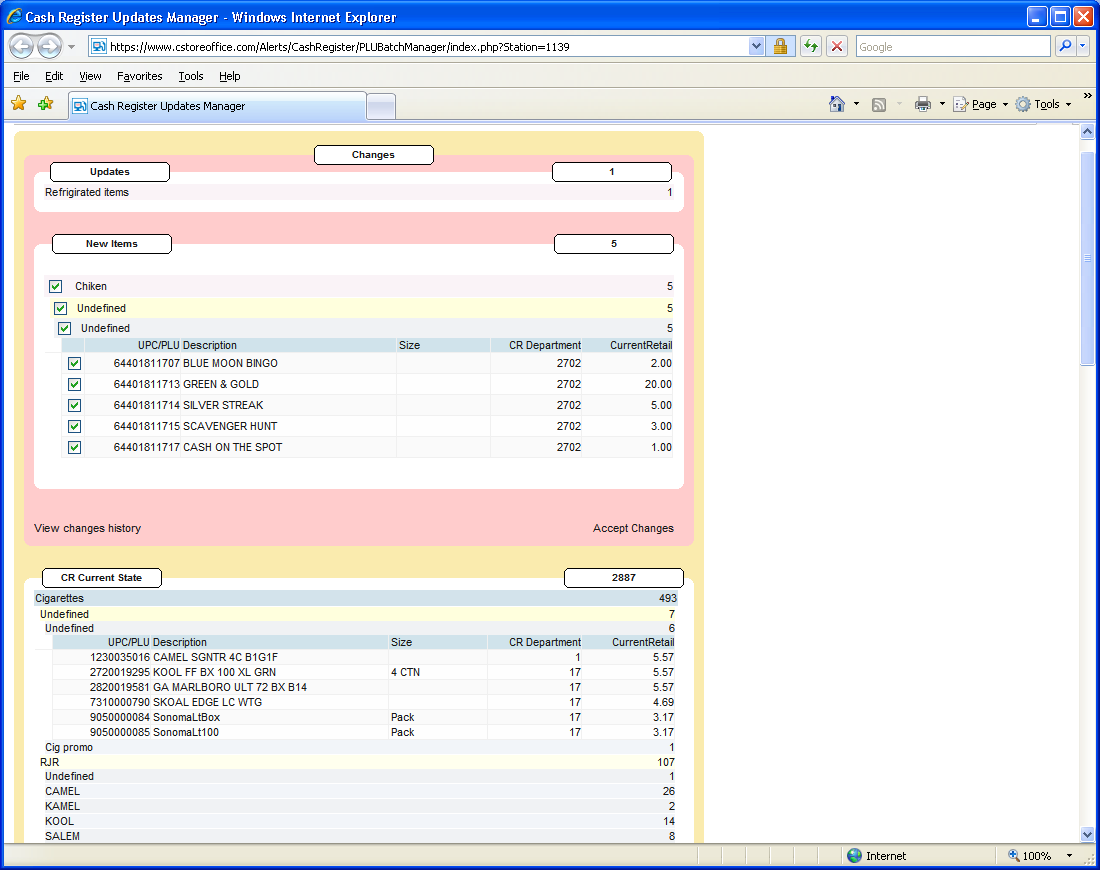
This will bring up the Cash Register Updates Manager.
Whenever a change is made to the Price Book, it appears in the top pink pane of the Cash Register Updates Manager. In this tool, you can review the changes that have been made to the station price book. You can review them by clicking on the category and drilling down to see more information about it.
When drilling down in these menus, you may see the term “undefined.” This simply means that the item has not been placed into a price group.
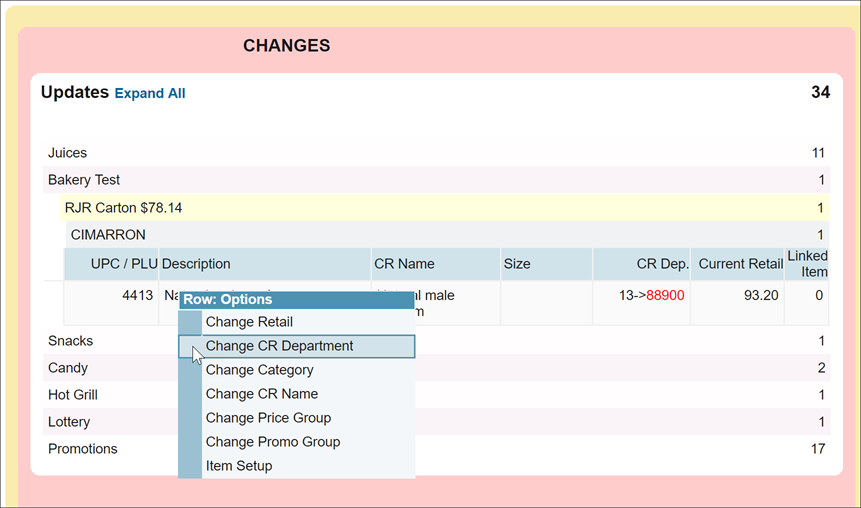
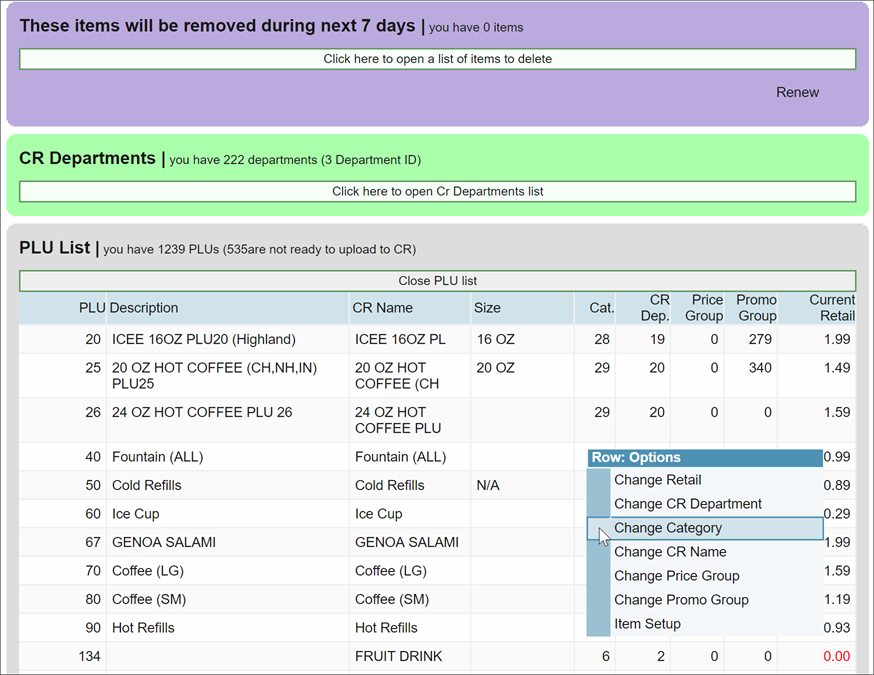
If you right click an item, it will bring up a menu that displays the options available to you in the update manager. You can change the retail, cash register department, CR Name, Category and also assign the item to an existing Price Group or Promo Group.
When you are happy with the changes to be made to your register you can click “Accept Changes” to apply them.
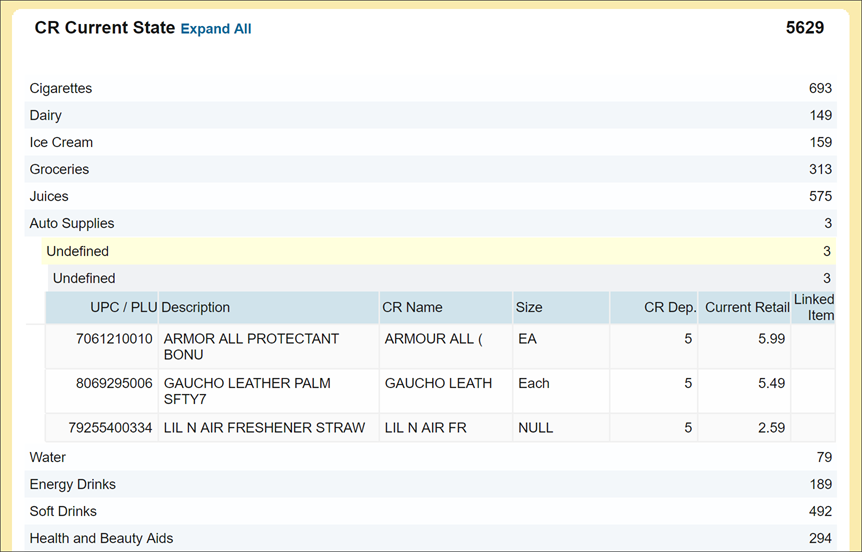
This will clear the entries out of the changes heading and apply them to the CR Current State pane. You can review the CR Current state pane to find out the actual prices and retail histories that are stored in your register at any time.
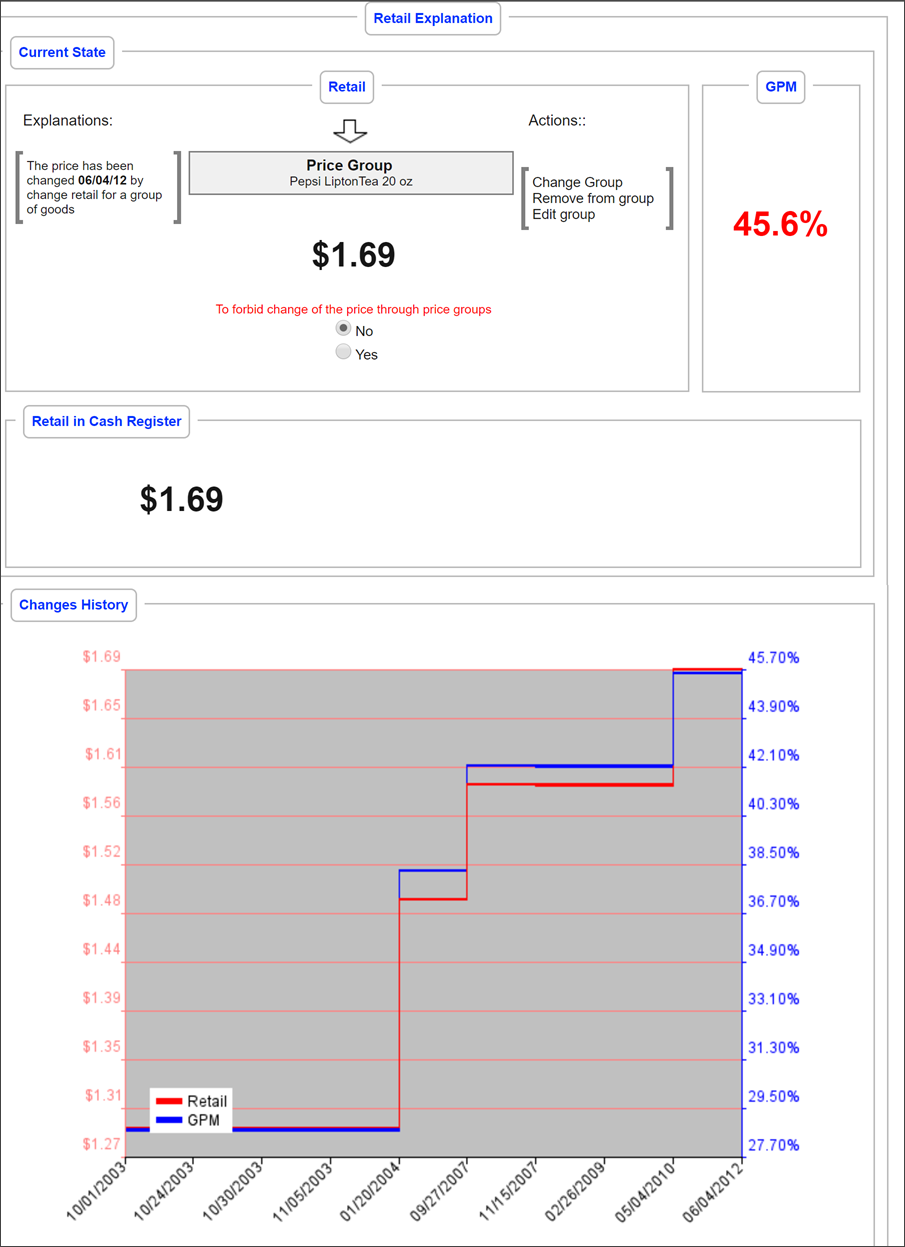
If you left click on the current retail price displayed in the update manager, it will bring up the Retail Explanation window.
This window shows how the final price used at the register was reached.
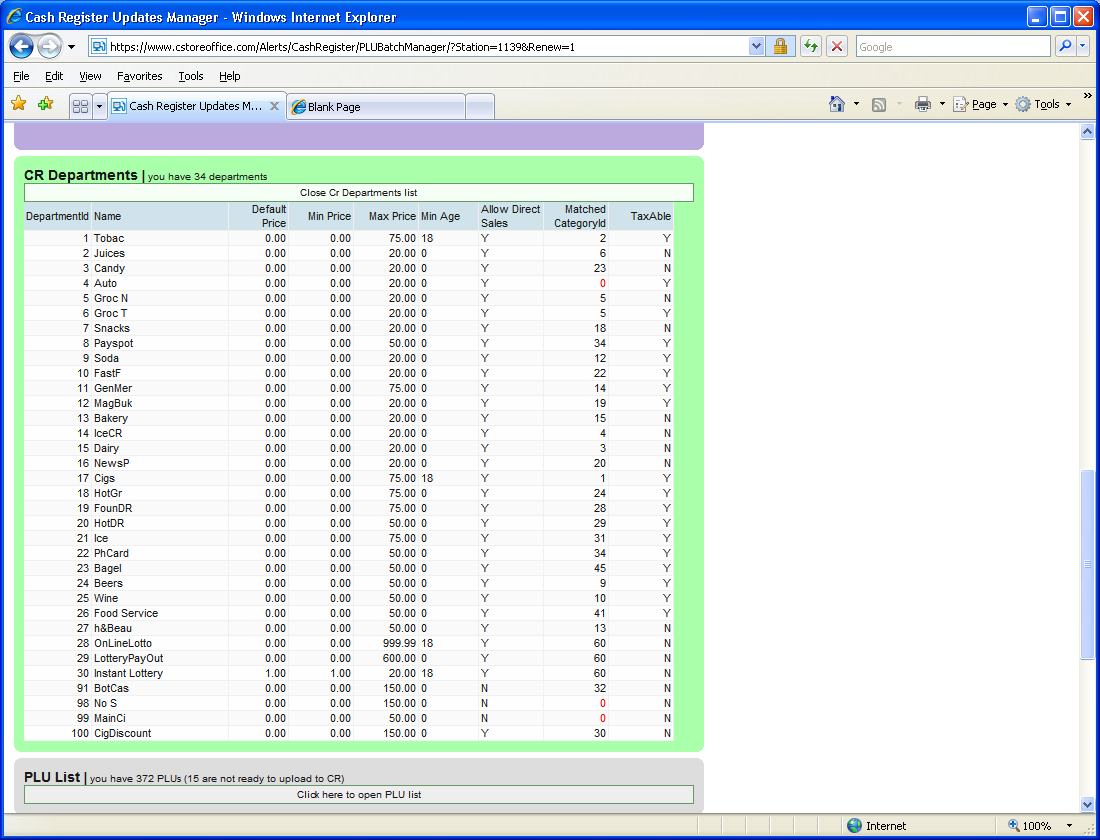
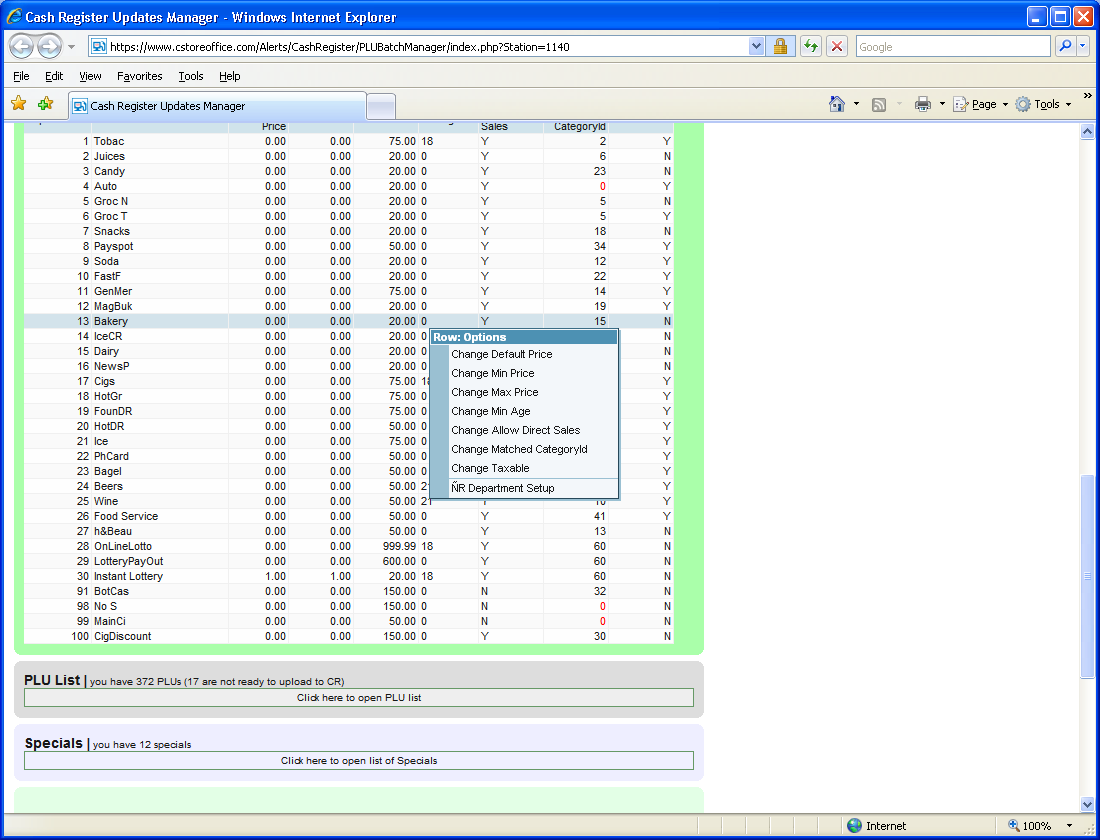
This pane allows you to manage the departments on the register. You can set the names that will be used as well as other attributes that are present in the departments. You can edit the departments in this section much the same as how you would in the CR Departments tool by right clicking on the given department and choosing your change.

This is where the PLU’s for your items are listed. PLU’s are entered using the Items Tool in the price book. Right-clicking on a given PLU will allow you to change its parameters.

Specials shows the list of promotions currently active. Right clicking on a given promotion will show the items involved.
Items Not in PLU Batch warns you about incomplete items in the price book. Incomplete items cannot be pushed to the register because some information was not entered for them. The items are listed in categories that show what information needs to be corrected so the listed items can be pushed to the register.
Last updated: Tuesday, November 6, 2018
Copyright © Petrosoft, LLC

Confidentiality level – Public use
Petrosoft, LLC
290 Bilmar Drive, Pittsburgh, PA 15205
Phone: 412-306-0640
Fax: 412-202-5487
 Feedback