


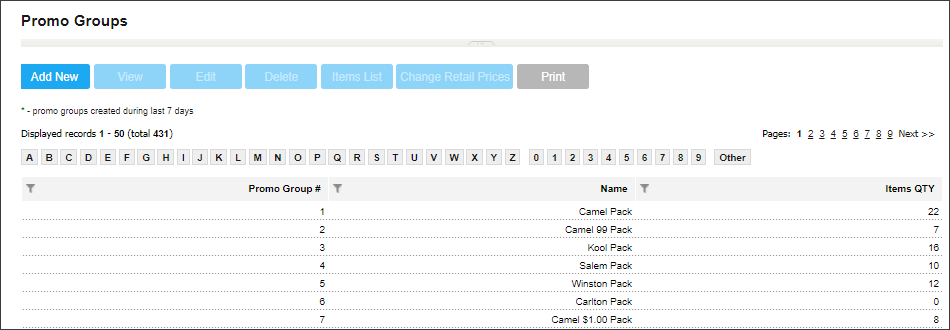
Only users with appropriate permissions can create, edit, and delete the promo groups.
 How To Access Promo Groups List
To open the list of promo groups, go to
All new (created within the last seven days) promo groups are marked with the green asterisk.
How To Add or Edit Promo Groups
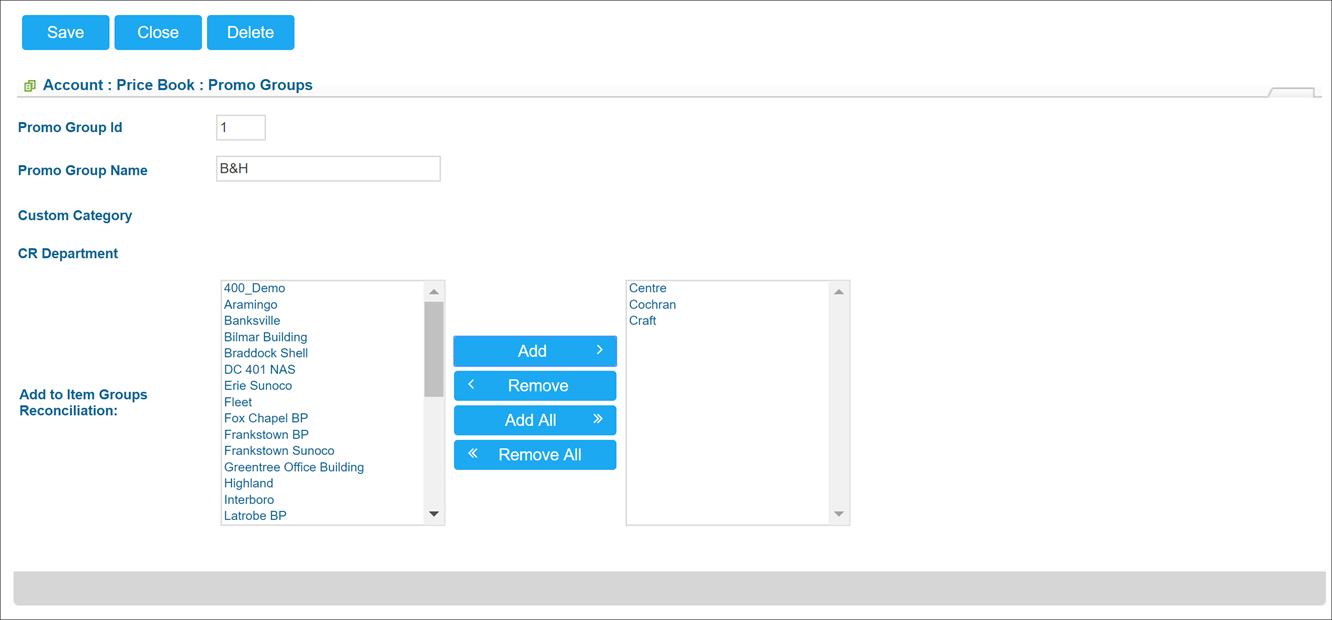
To open the form for editing a promo group, click Add New or select a group in the list and click Edit.
Items in the Promo Groups form include:
- Promo Group ID: The promo group number
- Promo Group Name: The name of the promo group
- Custom Category: The category to which the items of this group belong
- CR Department: The cash register department to which the items in this group belong
Promo Groups can be combined with the regular items to create the Price Each Mix promotions.
When adding a promo group or price group, the system will automatically assign a number. You can change this number to your desired value, such as 302. Enter an appropriate name for the group, for example, "soft drink family two liter product." After entering the number and name, click Save to add the promo group to the list. This process can be completed quickly, typically in about 30 seconds per group.
For item groups reconciliation, do not move your stores over unless you plan to count those items daily.
The Related Information section includes:
- Promo Groups List: Displays a report with a list of the groups
- Promo Group Items: Displays a list of the items included in the selected promo group
How to Print Promo Groups List
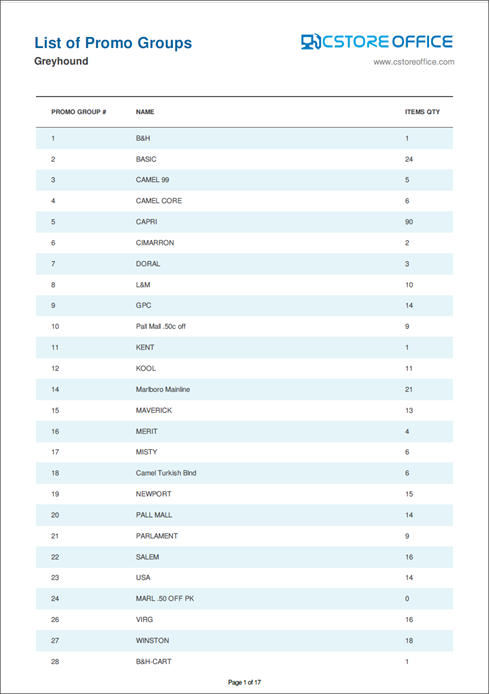
To view the list of promo groups in the printer friendly view, open the promo groups list and click the Print button at the top of the list.
CStoreOffice® loads the list of promo groups to a file of the PDF format and saves this file to the default downloads folder on the computer. To open the file, locate the downloaded file on the computer and double-click it.
Price book—Creating promo groups and promotions
This video presents the information on creating promo groups and promotions.


