


Logging in with Social Accounts
You can access your account using third-party authentication providers. This allows you to sign in using your existing credentials from Google, Apple, or Microsoft. When you use this method, the provider verifies your identity and shares your basic profile information (such as your email address and name) with us to facilitate the login process.
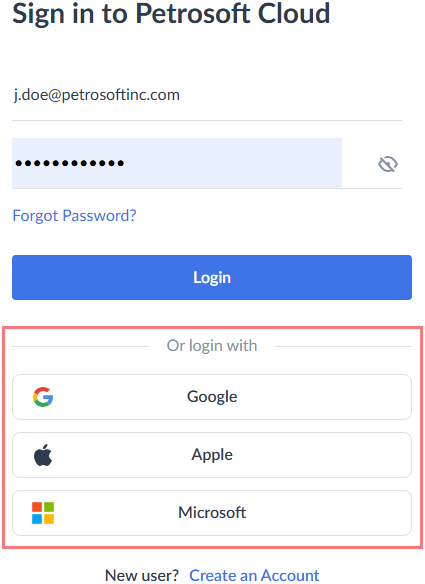
We do not receive or store your third-party account password.
Sign in with Google Account
- Click the Google button.
- Sign in to your Google account.
- If your Google account is not registered in CStoreOffice®, you will be prompted to purchase the subscription.
- When prompted, grant petrosoftinc.com consent to access your profile name, photo, and email address.
If you disconnect the account from CStoreOffice®, revoke access within Google settings to ensure Petrosoft no longer has permission to view your profile data. Go to your Google Account Security settings and remove keycloak-petrosoft-cloud from the list of third-party apps and services.
Sign in with Microsoft Account
- Click the Microsoft button.
- Sign in to your Microsoft account.
- If your Microsoft account is not registered in CStoreOffice®, you will be prompted to purchase the subscription.
- When prompted, grant Keycloak Petrosoft Cloud Application consent to access your profile information.
If you disconnect the account from CStoreOffice®, revoke access within Microsoft account settings to ensure Petrosoft no longer has permission to view your profile data. Visit the Microsoft Consent page to view and remove permissions granted to Keycloak Petrosoft Cloud Application.
Sign in with Apple ID
- Click the Apple button.
- Sign in to KC Petrosoft Cloud by using your Apple account credentials.
- Enter a one-time password provided by Apple MFA. Trust the browser to bypass MFA prompts on this specific device in the future.
- Bind KC Petrosoft Cloud with your Apple account to allow Petrosoft to access your profile name, photo, and email address.
- If your Apple account is not registered in CStoreOffice®, you will be prompted to purchase the subscription.
If you disconnect the account from CStoreOffice®, revoke access to ensure Petrosoft no longer has permission to view your Apple Account data. On your iPhone or Mac, go to Settings > Apple ID > Password & Security > Apps Using Apple ID. Select KC Petrosoft Cloud and choose Stop Using Apple ID.


