


The procedure for installing the Verifone Sapphire cash register includes the following steps:
- Set up the Verifone Sapphire cash register in CStoreOffice®.
- Connect the Verifone Sapphire cash register.
Setting up the Verifone Sapphire Cash Register in CStoreOffice®
To set up the Verifone Sapphire cash register in CStoreOffice®:
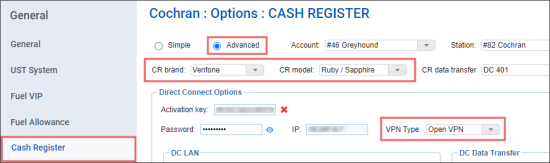
- From the main CStoreOffice® menu, go to Data Entry > Dashboard > Station Options > Cash Register.
- In the cash register options form:
- Select the Advanced option and set up the following settings:
- In the CR brand list, select Verifone.
- In the CR model list, select Ruby / Sapphire.
- In the Direct Connect Options section > VPN Type list, select Open VPN.

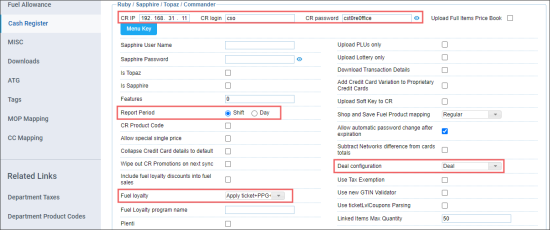
- In the Ruby / Sapphire / Topaz / Commander section, set up the following values:
- In the CR IP field, enter 192.168.31.11.
- In the CR login field, enter cso.
- In the CR password field, enter cst0re0ffice.
- In the Report Period options, select Shift.
- In the Fuel loyalty list, select Apply ticket+PPG+line discount as loyalty.
- In the Deal configuration list, select Deal.

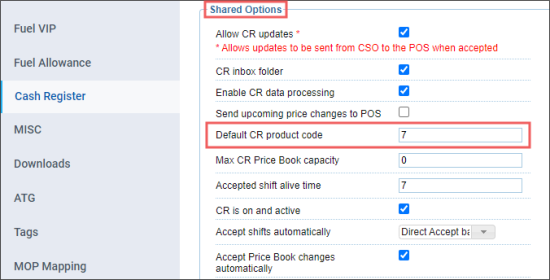
- In the Shared Options section > Default CR product code field, enter a value between 7 and 78. The default value is 7.
- At the top right of the form, click Save.
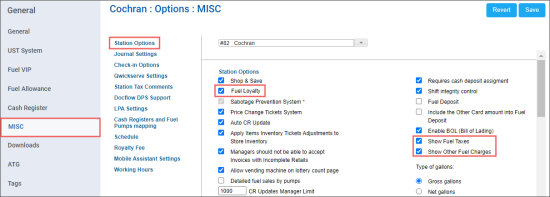
- Switch to the MISC form, to configure the MISC settings. In the MISC form:
- In the Station Options section:

- Select Fuel Loyalty, if needed.
- Select Show Fuel Taxes, if needed.
- Select Show Other Fuel Charges, if needed.
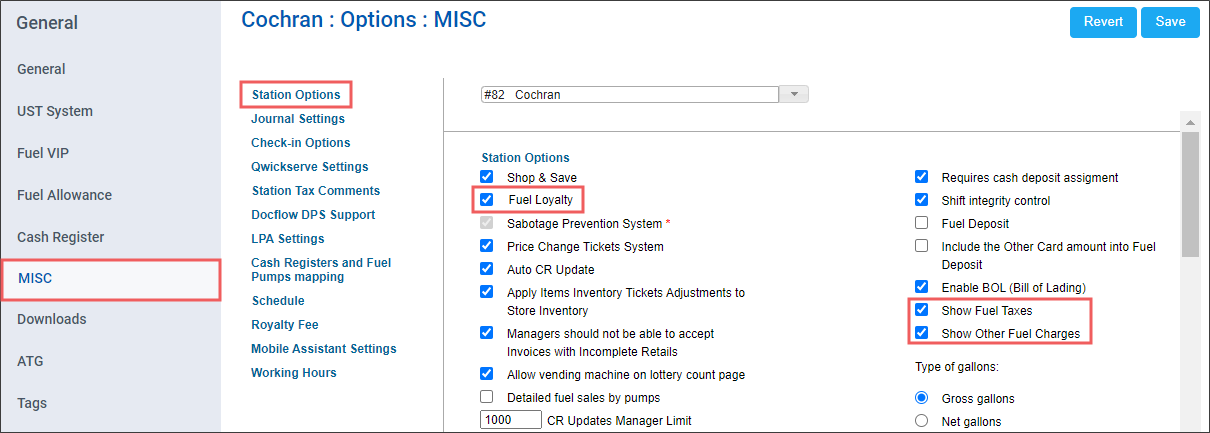
- In the Journal Settings section:
- Select Enable PJR processing, if needed.
- Select Keep Transaction Log Files on CR (DC), if needed.

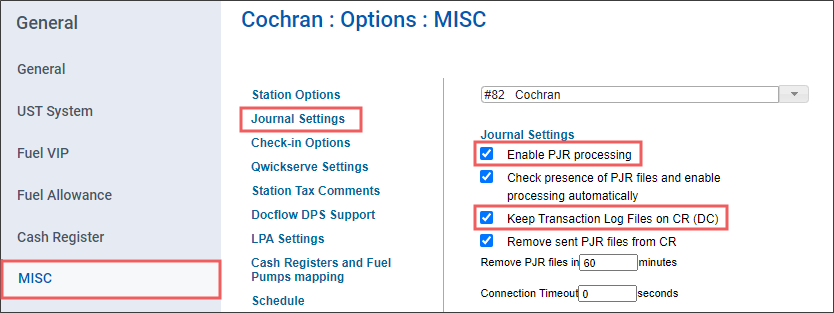
- At the top right of the form, click Save.
Connecting the Verifone Sapphire Cash Register
To connect the Verifone Sapphire cash register:
- Physically connect DC WAN to ISP router. Use a switch, if needed.
- Physically connect DC LAN to Sapphire router port 5 or 6. Typically Cisco ASA-5505.
- Reprogram DC box, if necessary.
- Log into Sapphire using Sapphire Management System (SMS).
- Create CSO user with at least Manager and HelpDesk roles:
- User: cso
- Password: cst0re0ffice
- Click Receive Shifts.


