


You can import the existing Chart of Accounts directly from QuickBooks Online and other financial system of your choice, preserving the account hierarchy and automatically resolving synchronization conflicts.
To import your Chart of Accounts:
- Open the chart of accounts. For details, see Working with Charts of Accounts.
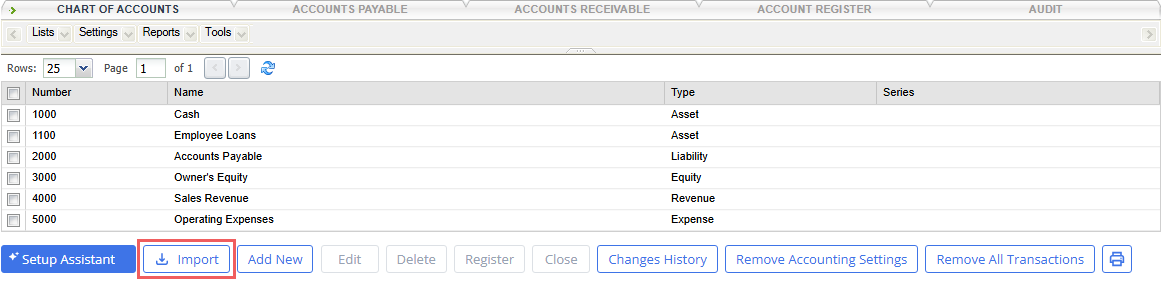
- At the bottom of the chart of accounts, click the Import button.
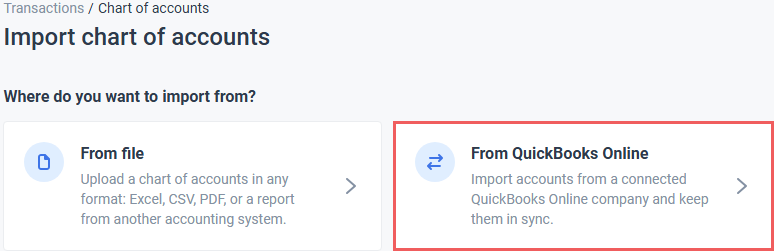
- Select the Chart of Accounts source:
- QuickBooks Online
- File (spreadsheet, screenshot, photo, and even scanned paper document)
The incoming source data always takes priority during import. Any matched existing accounts in CStoreOffice® will have their properties (including account name, GL number, type, and hierarchy placement) automatically overwritten to match the source.
Importing from QuickBooks Online
CStoreOffice® is integrated with QuickBooks Online (QBO), ensuring that both systems operate with the same accounting entities. Transactions registered in CStoreOffice® are copied to QuickBooks Online, keeping records up to date across both platforms, reducing manual data entry, and enhancing overall efficiency.
Instead of creating the complete Chart of Accounts in CStoreOffice® manually, you can automatically import your active QBO accounts top-down, preserves parent-child account hierarchies, and immediately links each imported account to its corresponding QBO record. Establishing these links from the start ensures your financial data stays unified and prevents duplicate accounts from being generated during routine synchronizations.
Prerequisites
Prior to starting the QBA account import, confirm that the following prerequisites are met:
- You have an active QuickBooks Online subscription.
- The Accounting module in CStoreOffice® is configured properly.
Importing Accounts
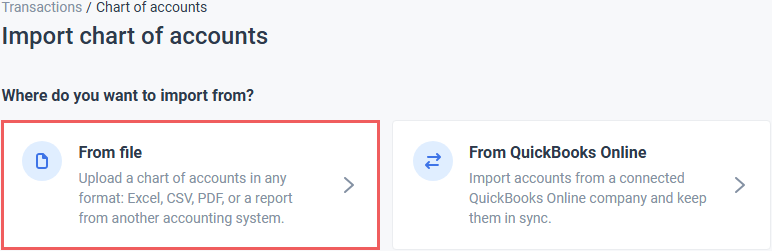
- Select From QuickBooks Online in the first step of the import tool.
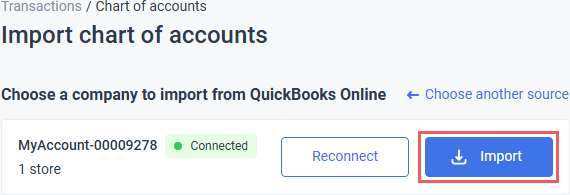
- When prompted, sign in to QBO using your email, user ID or phone, if you have not already done so.
- Click the Import button.
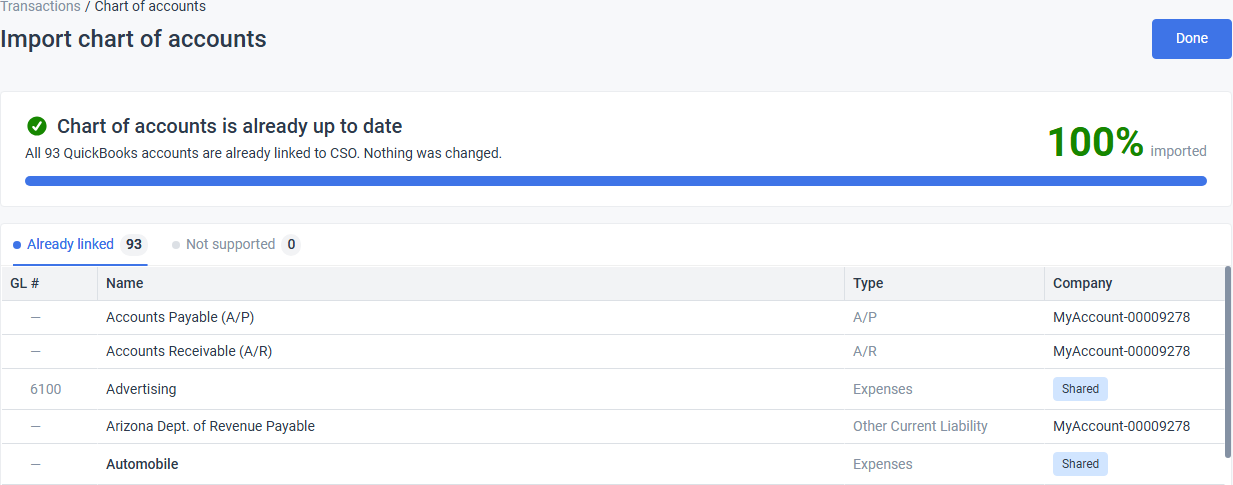
- Wait for the import to complete and review changes.
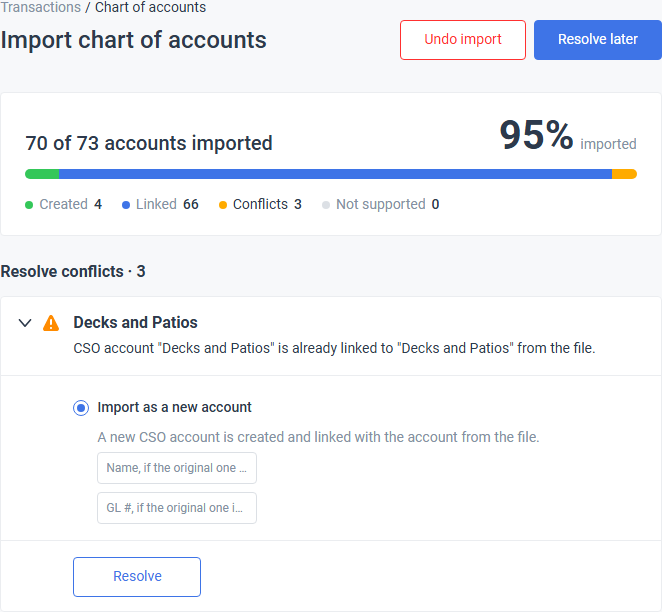
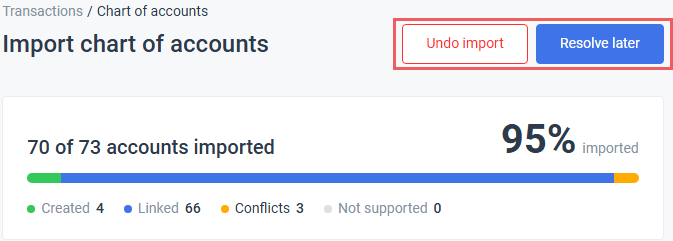
CStoreOffice® automatically handles most non-blocking discrepancies, such as different parent placements or cross-company account sharing, with the option to adjust them at any time. In case of blocking changes, the system proposes manual resolution scenarios, preventing potential long-term issues. - Click the Done / Resolve Later button to accept the changes. Click the Undo import button to roll back to the original chart of accounts.

What Is Imported from QBO
When you run the Chart of Accounts import, CStoreOffice® pulls your eligible accounts and transfers specific account properties into CStoreOffice®:
- All active QBO accounts. The following accounts are not imported:
- Inactive/archived accounts.
- Accounts categorized as
NonPostingor any unrecognized QBO types. - Any account missing a name in QBO.
- Any child account whose parent has an unsupported type.
- Accounts are imported in hierarchical order from parent to sub-account.
- If an active sub-account belongs to an inactive parent in QBO, it is imported as a root (top-level) account in CStoreOffice®.
The following account fields are transferred:
| QBO field | CStoreOffice® field | Import specifics |
|---|---|---|
| Account Number (AcctNum) | GL # | Imported with leading and trailing spaces removed. Empty GL # is permitted. |
| Name | Account Name | Imported exactly as named in QBO (up to 31 characters). |
| Type & Sub-Type | Account Type | Mapped to the corresponding CSO account type. |
| Description | Description | Imported as is. |
| Parent Account | Parent Account | Linked to the corresponding CSO parent account to preserve hierarchy. |
| n/a | Status | Automatically set to Active (matching hidden CSO accounts are restored). |
| n/a | Company |
|
The following details are not imported:
- Classes assigned in QBO are not mapped or assigned to CStoreOffice® accounts.
- Multi-currency settings are not imported or stored in CStoreOffice®.
Importing from File
If you do not use QuickBooks Online or are migrating from another accounting platform (such as Sage, NetSuite, or Xero), you can import your Chart of Accounts directly into CStoreOffice® from virtually any format.
Using AI-powered document recognition, CStoreOffice® can parse digital files, spreadsheet exports, and even physical documents (including paper balance sheets, printed account listings, photos, and screenshots). The system automatically detects account numbers, names, and parent-child hierarchies from a source file.
- Select From file in the first step of the import tool.
- Select a source file and wait for the import to complete. The processing may take several minutes to complete.
- Wait for the import to complete and review changes.
CStoreOffice® automatically handles most non-blocking discrepancies, such as different parent placements or cross-company account sharing, with the option to adjust them at any time. In case of blocking changes, the system proposes manual resolution scenarios, preventing potential long-term issues. - Click the Done / Resolve Later button to accept the changes. Click the Undo import button to roll back to the original chart of accounts.
The source file size must not exceed 25 MB.
Best Practices for Scans and Photos
To ensure the highest accuracy when uploading physical paper documents or screenshots:
- Avoid shadows, glare, or skewed angles when taking photos of printed pages.
- Keep paper flat and uncreased so columns and indentation align properly.
- Ensure screenshots and scans are clear and text is not blurry or pixelated.
- If exporting or printing, include headers (such as ab Account #, Name, Type) to help the system categorize data faster.
Rolling Back Imported Accounts
If you need to cancel an import, CStoreOffice® allows to completely undo all changes made during the import process.
Rollback is an all-or-nothing action. It restores your Chart of Accounts to the exact state it was in before the import was initiated, undoing all import runs, account creations, and applied conflict-resolution choices.
Rollback is available only if the imported accounts have not been altered or involved in downstream processes:
- One or more imported accounts have been assigned to invoices, bills, journal entries, or payroll.
- Accounts are mapped in Transaction Assignment rules.
- A scheduled or manual QBO syncronization occurred after the import. Reverting in CSO would cause your local accounts to fall out of sync with QBO.
- An imported account was manually edited, renamed, or reclassified in the Chart of Accounts after the import.
- A new sub-account was manually created under an imported account.
You can perform a rollback from two locations:
Chart of Accounts Page
- Look for the notification banner at the top of the page indicating that a recent import was completed:
- Click the Undo button.

Import Results
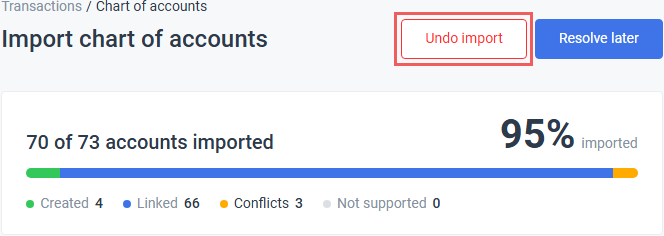
In the import results screen (accessible immediately after running an import), click the Undo import button and confirm the rollback.
Rollback specifics
- Rollback operates on the entire import batch to prevent orphaned child accounts, broken hierarchy references, or sync mismatches.
- While import adjustments appear in changes history, they cannot be undone line-by-line from that screen. You must use the complete revert so the system can validate safety conditions (transaction checks, sync status) and properly resume synchronization.


